Solo.Swipe Get the App

iPhone Photo Cleaner & Organizer

Clean Your iPhone Photo Library With a Swipe

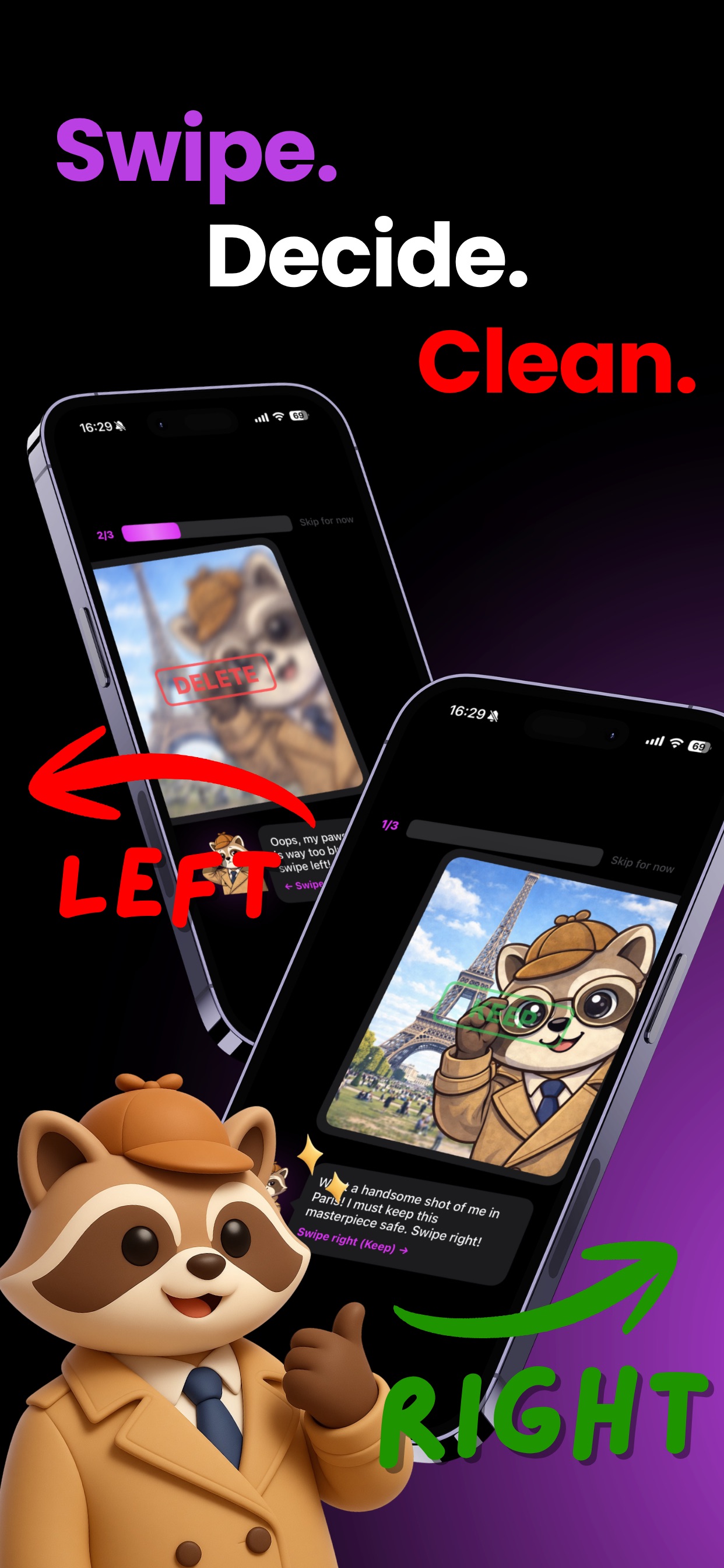
Solo.Swipe is an iPhone photo cleaner and organizer built around swipe gestures. Review your camera roll one photo at a time: swipe left to delete, right to keep, and up to file a photo into an album. Smart Modes surface blurry shots, screenshots, large files and duplicate groups, so a library of tens of thousands of photos becomes a few short daily sessions instead of one exhausting cleanup.

Built for busy camera rolls — travellers, parents, photographers and content creators who shoot far more than they ever post. Your photos are read and analysed on your device with Apple's PhotoKit and Vision frameworks; Solo.Swipe has no photo server. And yes, Detective Raccoon is on the case with you. 🕵️

Download Solo.Swipe on the App Store — free, for iPhone.

Reporting for duty! 🐾

Detective Raccoon, the Solo.Swipe mascot, holding a magnifying glass
The case file

What is Solo.Swipe?

Solo.Swipe is an iPhone photo cleaner and photo organizer designed around swipe-based review. Instead of tapping photos one by one in the Photos app's selection mode, Solo.Swipe shows you a single photo at a time as a card. You swipe left to mark it for deletion, right to keep it, up to add it to an album, and down to skip it and decide later.

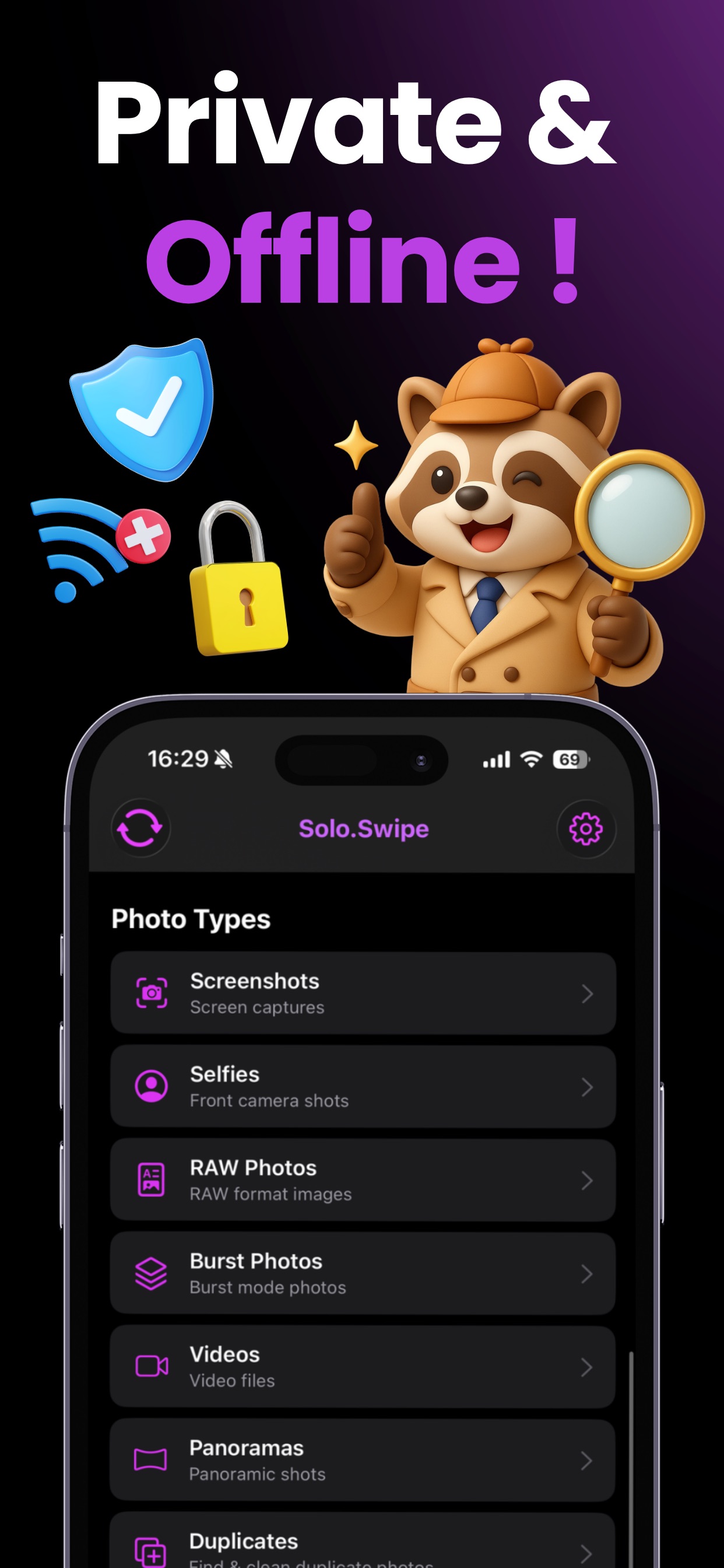
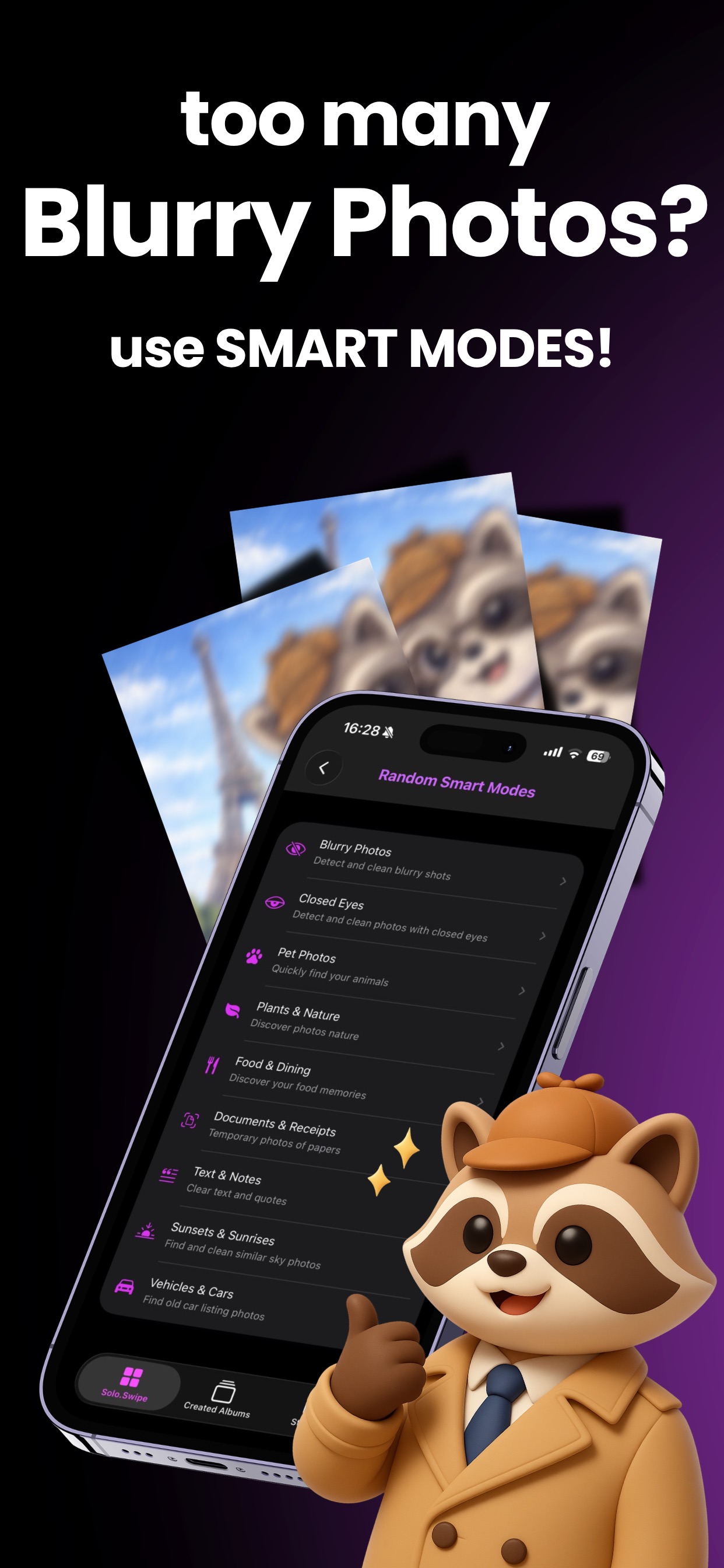
You never have to clean the whole library at once. Solo.Swipe splits your camera roll into small, finishable sets: a specific day, month or year, an album, a location, screenshots, selfies, videos, panoramas, RAW or burst photos, your largest files, or a random batch of twenty. Smart Modes go further and surface photos worth a second look — blurry shots, photos where someone blinked, documents and receipts, food photos, pet photos and more — while a separate duplicates view groups near-identical photos so you can keep one and clear the rest.

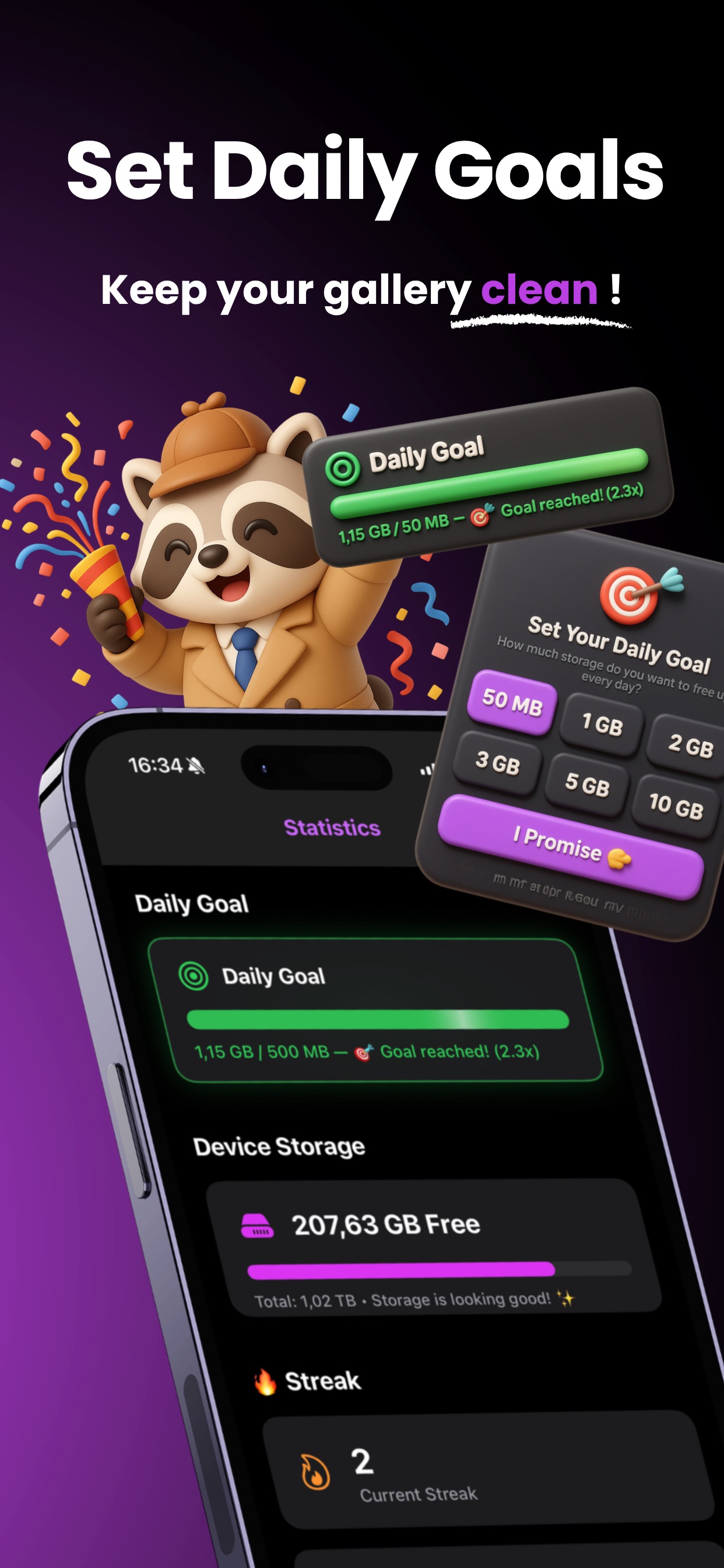
It is built for people whose libraries got out of hand: anyone sitting on 10,000, 30,000 or 100,000 photos who wants to free up iPhone storage without spending a weekend on it. Daily goals and streaks turn the cleanup into a short habit, and Detective Raccoon keeps it from feeling like a chore.

The method

How Solo.Swipe Works

Solo.Swipe cleans an iPhone photo library in six steps.

  1. Pick a set of photos

    Choose a day, month, year, album, location, category or Smart Mode from the home screen. Each set is small enough to finish in one sitting.

  2. Review photos one at a time

    Photos appear as a card stack. Videos play in place and Live Photos animate, so you can judge each item properly before deciding.

  3. Swipe to keep, delete, file or skip

    Swipe right to keep, left to mark for deletion, up to add the photo to an album, and down to skip it without a decision.

  4. Let Smart Modes find the clutter

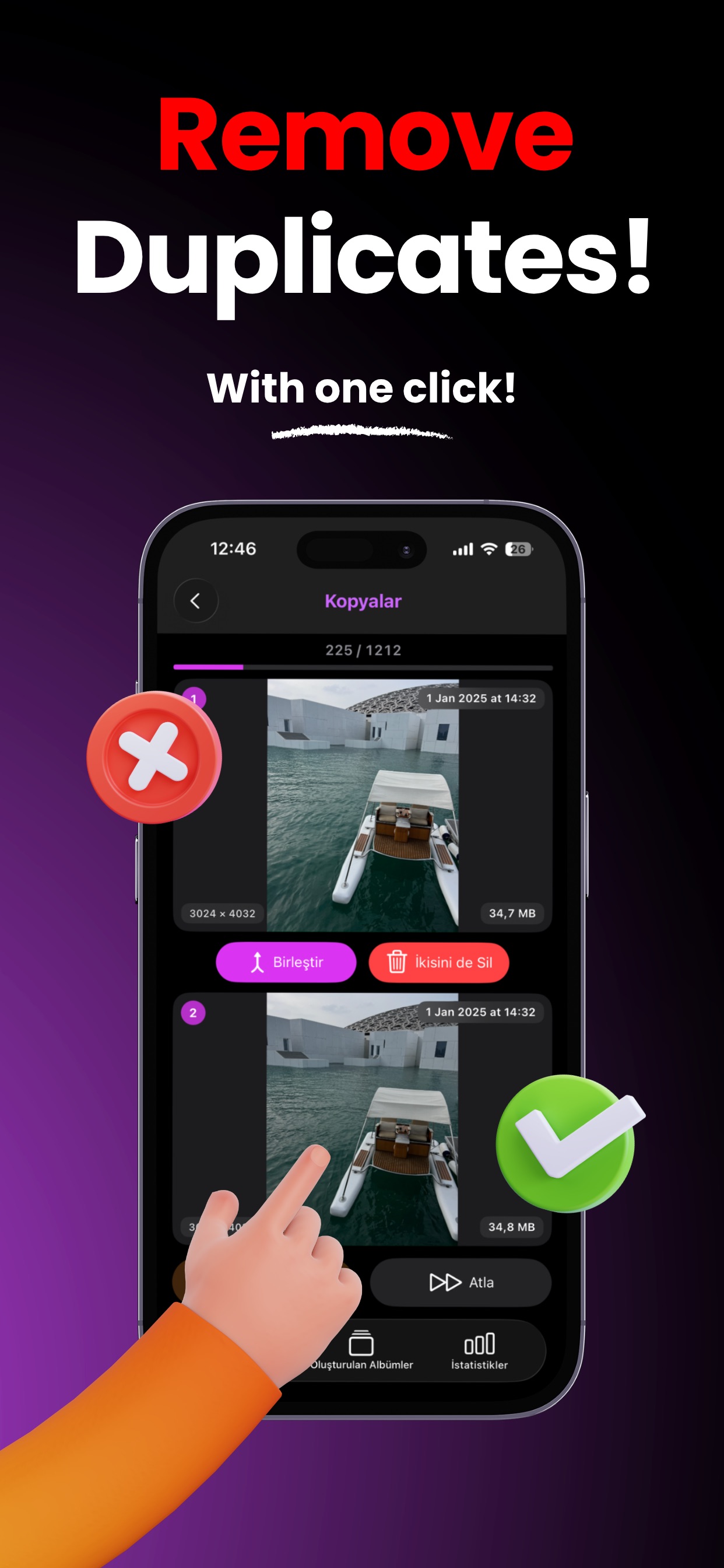
    Run a Smart Mode to pull out blurry photos, closed-eye shots, screenshots, documents or large files — or open the duplicates view to compare near-identical photos side by side.

  5. Confirm before anything is deleted

    At the end of a session Solo.Swipe shows everything you marked and asks you to confirm. Deletion goes through iOS, and deleted items land in Apple's Recently Deleted album for 30 days.

  6. See the storage you freed — and keep the streak

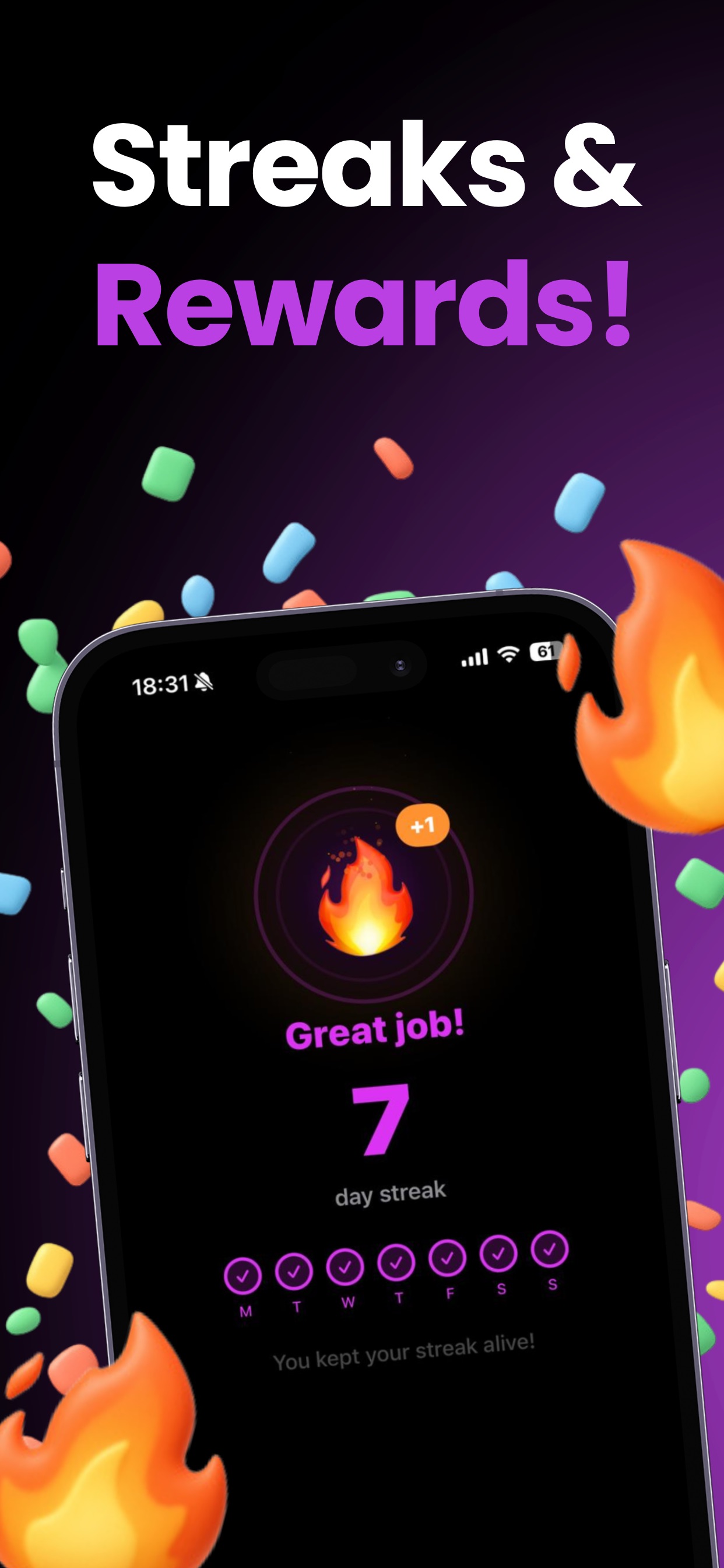
    Each session reports how many photos you handled and roughly how much space you recovered. Hit your daily goal to extend your cleaning streak and come back tomorrow.

My Investigation Tactics 🔍

The tools Solo.Swipe gives you for cleaning and organizing an iPhone photo library. Each one is covered in depth — what it does and when to reach for it — on the full features page.

Swipe to Clean

Four gestures do the whole job: swipe right to keep a photo, left to mark it for deletion, up to drop it into an album, down to skip it. It's the fastest way to clear a camera roll without tapping through selection mode — swipe right to keep your masterpieces, left to toss the blurry evidence.

How the gestures work →

Smart Modes

Detective Raccoon has a sharp eye. Smart Modes use Apple's on-device Vision framework to surface photos worth reviewing first — blurry shots, photos where someone blinked, documents and receipts, screenshots, food, pets, plants, vehicles and sunsets — so you don't have to hunt for the clutter yourself.

All nine Smart Modes →

Duplicate & Similar Photos

Burst shots and near-identical retakes get grouped together so you can compare them, keep the best one and clear the rest in a couple of taps. Duplicates are usually the quickest storage win in a large library.

What iOS misses →

Photos Processed On Your Device

A good detective keeps every case confidential. Solo.Swipe reads and analyses your photos on your iPhone using Apple's PhotoKit and Vision frameworks. There is no photo server: your images are never uploaded, copied off the device or shared with anyone.

Privacy & safety in detail →

Daily Goals & Streaks

Set a daily target — say fifty photos — and Solo.Swipe tracks your progress with a goal ring, a streak counter and an optional home screen widget. Cleaning a huge library works far better as a five-minute daily habit than as one heroic session.

Habit & progress tools →

Albums, Superfast

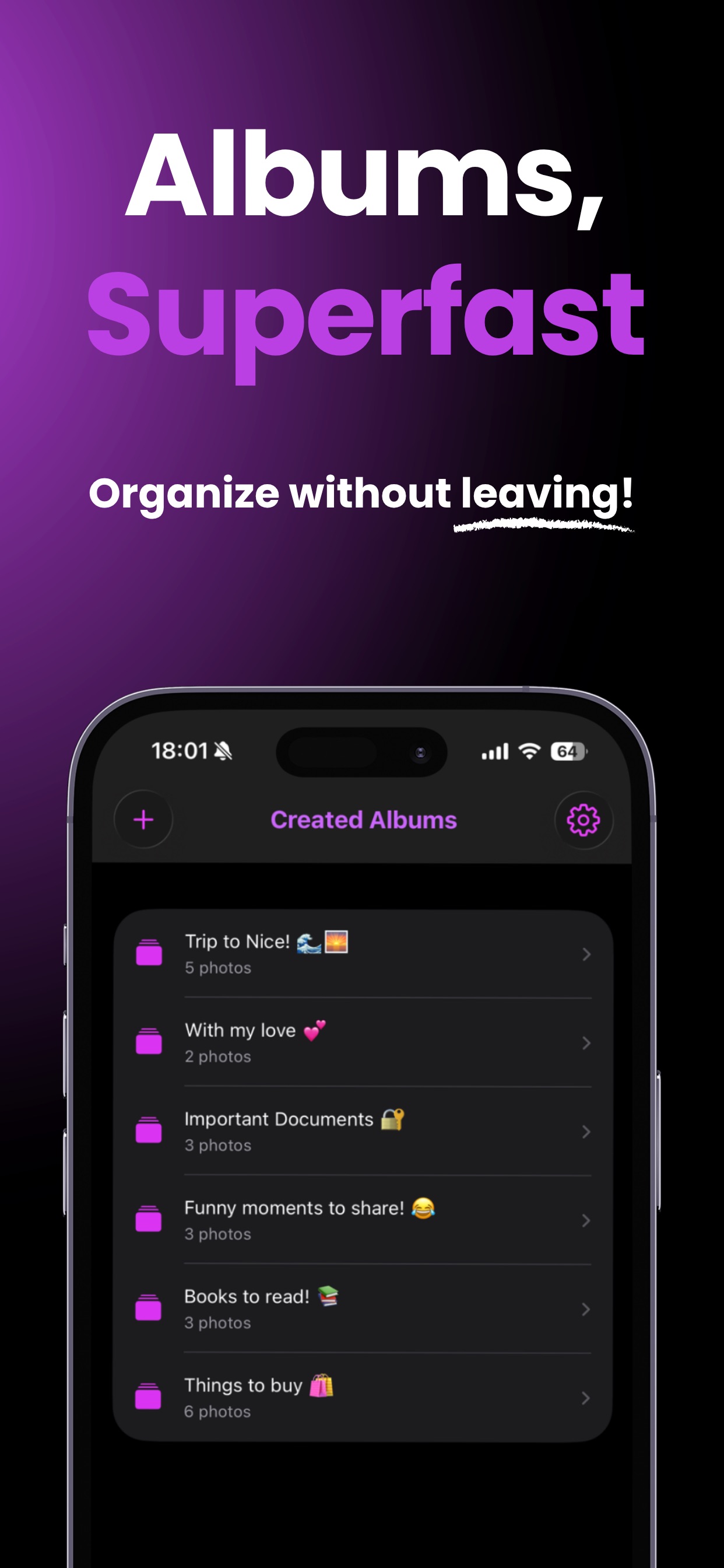
Found a top-secret file? Swipe up to add the photo to an album without leaving the review flow. You end a session with a cleaner library and better-organized keepers, instead of promising yourself a second pass you'll never do.

Organizing while you clean →

Built for Large Libraries

Solo.Swipe loads photos in batches rather than all at once, so it stays responsive whether you have 100 photos or 100,000. Browsing by day, month, year, album or category keeps even an enormous library manageable.

All 18 ways to browse →

Storage Insights

See what's actually eating your storage — videos, screenshots, large files — and jump straight from the breakdown into a cleaning session for that category. Every session reports roughly how much space you freed.

Storage tools explained →
Busy camera rolls

Made for people who take a lot of photos

Solo.Swipe can be useful for content creators because content creation produces far more photos than get published. One post can leave behind fifteen takes of the same shot, reference screenshots, an unused clip and an edited copy sitting next to the original — and none of it gets deleted, because the post is done and the camera roll is tomorrow's problem.

The material that piles up is fairly predictable:

  • multiple takes of one shot
  • rejected frames and blinks
  • reference and inspiration screenshots
  • unused short-form clips
  • B-roll you never cut in
  • edited and unedited versions
  • thumbnail attempts
  • story screenshots and drafts
  • temporary assets from other apps

Solo.Swipe makes reviewing that clutter a short, repeatable habit rather than a job you keep postponing. It doesn't schedule posts, edit video or store anything in the cloud — it handles one part of the workflow: clearing and organizing what's on the phone.

Content creators

Keep large volumes of takes, drafts and screenshots manageable, so the camera roll stays a working library rather than an archive you avoid opening.

Influencers

Review the unused shots left over from content days, campaigns and brand shoots — dozens of pose and outfit variations where only one gets posted.

Photo lovers

Photographers, travellers and parents alike: take as many photos as you want without letting the camera roll become overwhelming.

Solo.Swipe for content creators →

The routine

The Camera Roll Reset

A Camera Roll Reset is a short routine for reviewing the photos, screenshots and videos that have accumulated on your phone and deciding what deserves to stay. It's the term we use at Solo.Swipe for a recurring cleanup session — five or ten minutes, one batch, a clear end point.

It works because a camera roll refills every week. A once-a-year purge buys a few months; a small routine keeps the library permanently manageable. There's a five-minute daily version, a Sunday version that sits inside a wider digital reset, a post-shoot version for content days, and a travel version for coming home with four hundred photos.

Solo.Swipe is built around that routine: finishable batches, four gestures, and a streak to keep you coming back. Read the Camera Roll Reset routine →

Confidential case file

Your Photos Stay Yours

Photos are the most personal thing on a phone — and for creators, often the most confidential. Here is exactly how Solo.Swipe handles them.

  • Photos are processed on your device. Solo.Swipe reads your library through Apple's PhotoKit framework and analyses images with Apple's on-device Vision framework.
  • Your photos are never uploaded. There is no Solo.Swipe photo server. Images are not copied off your iPhone, sent to a cloud service, or shared with third parties — including unpublished shoots and client work.
  • Deletion goes through iOS. When you confirm a cleanup, items move to Apple's Recently Deleted album, where you can restore them for 30 days before iOS removes them permanently.
  • App data stays local. Preferences, session statistics, streaks and album references are stored on your device and are removed when you delete the app.
  • Photo library access is optional and revocable. Solo.Swipe asks for photo access when you start, and you can change or withdraw it at any time in iOS Settings.

Solo.Swipe is free to download and the free version is supported by advertising delivered through Google AdMob. Ads are requested by Google's SDK and may involve device-level advertising data depending on the tracking permission you grant; your photos are never part of that. The optional paid upgrade removes ads. Full details are in the Solo.Swipe privacy policy.

The Evidence Board 📸

A look at Solo.Swipe running on iPhone — the swipe review screen, cleanup categories and progress tracking.

Solo.Swipe iPhone photo cleaner app screen
Solo.Swipe swipe-based photo review on iPhone
Solo.Swipe photo cleanup categories on iPhone
Solo.Swipe photo library cleaning screen on iPhone
Solo.Swipe cleaning progress screen on iPhone
Solo.Swipe photo organizer screen on iPhone
Solo.Swipe iPhone storage cleanup screen
Questions from the precinct

Frequently Asked Questions

What is Solo.Swipe?

Solo.Swipe is an iPhone photo cleaner and organizer. It shows the photos in your library one at a time and lets you clear them out with swipe gestures instead of tapping through Apple's Photos app in selection mode.

How does Solo.Swipe clean iPhone photos?

You pick a group of photos — a day, a month, an album, a location, screenshots, videos, or a Smart Mode — and review them as a card stack. Swiping left marks a photo for deletion, swiping right keeps it, swiping up files it into an album, and swiping down skips it. At the end of the session Solo.Swipe asks you to confirm before anything is deleted.

Can I swipe to delete photos on iPhone?

Apple's built-in Photos app does not have a swipe-to-delete review mode, so you need a third-party app. Solo.Swipe adds that gesture: swipe a photo left to mark it for deletion and right to keep it. Deletion happens through Apple's system confirmation, and deleted items go to the Recently Deleted album.

Does Solo.Swipe find duplicate or unwanted photos?

Yes. Solo.Swipe groups likely duplicates and near-identical shots so you can pick one to keep, and its Smart Modes surface categories such as blurry photos, photos with closed eyes, screenshots, selfies, documents, food, pets and large files. The features page covers all of them.

Does Solo.Swipe upload my photos?

No. Photos and videos are read and analysed on your iPhone using Apple's PhotoKit and Vision frameworks. Solo.Swipe has no photo server: your images are not uploaded, copied off the device, or shared with third parties.

Can Solo.Swipe help free up iPhone storage?

Yes. Solo.Swipe shows how much space a cleaning session recovered and includes a storage breakdown plus a Large Files mode so you can start with the videos and photos taking up the most space. Space is reclaimed once the items leave the Recently Deleted album, which happens automatically after 30 days or immediately if you empty it.

Can I organize photos into albums with Solo.Swipe?

Yes. Swiping up during a session adds the current photo to an album you choose, so you can sort keepers while you clean instead of doing a second pass later.

Does Solo.Swipe work with large photo libraries?

Solo.Swipe is designed for large libraries. Photos load in batches rather than all at once, and you can break a big library into small sessions by day, month, year, album, location or category so you never have to face tens of thousands of photos in one sitting.

Is Solo.Swipe useful for content creators?

It can be. Content creation produces far more photos and videos than get published — multiple takes of one shot, reference screenshots, unused clips and edited versions saved alongside originals. Solo.Swipe gives creators a fast way to review that leftover material after a shoot and file the keepers into albums in the same pass. There's more detail on photo cleanup for content creators.

What is a Camera Roll Reset?

A Camera Roll Reset is a short routine for reviewing the photos, screenshots and videos that have accumulated on your phone and deciding what deserves to stay. It is deliberately small and repeatable — usually five to ten minutes — rather than an attempt to clean an entire library at once. Solo.Swipe uses the term to describe this kind of recurring photo cleanup session.

Can Solo.Swipe be part of a digital declutter or Sunday reset?

Yes. Solo.Swipe covers the camera roll portion of a wider digital decluttering routine, alongside steps like clearing your inbox, downloads folder, browser tabs and notifications. It does not organize anything outside your photo library.

Is Solo.Swipe available for iPhone?

Solo.Swipe is an iOS app for iPhone and is distributed through Apple's App Store.

Where can I download Solo.Swipe?

Solo.Swipe is available on the App Store. The app is free to download and offers an optional paid upgrade — download Solo.Swipe on the App Store.

Ready to solve the case?

Start with one day of photos. Swipe through it, see the storage come back, and let Detective Raccoon handle the rest tomorrow.

Clean My Photo Library Download Solo.Swipe on the App Store — free, for iPhone.