 Solo.Swipe
Every Tool for Cleaning Your Camera Roll
Solo.Swipe is a photo cleaner and organizer for iPhone and iPad, built around swipe gestures. This page covers everything it does — four gestures, eighteen ways to browse, nine Smart Modes, a duplicate-pair finder, album filing and clean-up, storage insights, habit tracking and widgets — with what each one is for and when it's the right tool to reach for.
The short version: the app finds the photos worth deciding about, shows them one at a time, and makes each decision a single swipe. Everything below is a variation on that.
What's free and what's Pro?
Swiping, browsing, albums, stats, streaks and widgets are free. Smart Modes, Duplicates and Large Files are Pro features; free users can unlock each one for the rest of the day by watching a short ad. The free version also shows an ad card every 5 swipes and allows 50 deletions a day (+20 for each optional ad). Solo.Swipe Pro removes the ads and limits, with a monthly or yearly plan; see the current price on the App Store. See pricing
Review & gestures
The core loop. One photo, full screen, one swipe, next photo.
Four-direction swipe review
Photos appear as a full-screen card stack. Each direction is a decision, and the next photo is ready immediately. An orange Undo button reverses your last swipe.
Left — delete
Marks the photo for deletion. Nothing is removed yet; it joins the list you confirm at the end.
Right — keep
Keeps the photo and marks it reviewed, so it won't be shown to you again in future sessions.
Up — file into album
Adds the photo to an album you pick, without leaving the review flow.
Down — skip
Passes without deciding. The escape hatch that stops one hard photo from stalling a whole session.
A grid of thumbnails hides exactly what you need to judge — sharpness, expression, which of four takes is the good one. Full screen plus a one-gesture input is what gets a session down to a second or two per photo, and that speed is the difference between finishing and abandoning.
Video playback and Live Photos in review
Videos play in place inside the card, and Live Photos animate, so you can judge a clip without opening it separately.
Video is the hardest thing to review in any photo app, because a still frame tells you almost nothing about whether the clip is usable. Playing it inline means you can decide on the spot instead of bailing out to Photos and losing your place.
You're clearing the Videos category, or working through a shoot that mixed stills and clips.
Reviewed tracking
Solo.Swipe remembers which photos you've already made a decision about, so they don't reappear in later sessions.
Without this, every session would start by re-showing you the same thousand photos you already kept — which is exactly why manual cleanup in the Photos app never converges. Here, the pool of undecided photos only ever shrinks. If you leave mid-session, Solo.Swipe offers to pick up where you left off, and you can reset the reviewed list in Settings.
Always. It's what makes short repeated sessions add up instead of looping.
Browsing — pick a batch you can finish
"Clean my camera roll" has no end, so you never start. Every category here has one.
By time — days, months, years, recents
Work through a single day, a month, a year, or just the most recent photos.
Time is the best entry point for most people, because context makes decisions fast — you remember the event, so you know which of the six similar shots you actually wanted. Days view is also where retakes and burst leftovers are most obvious, since they sit next to each other chronologically. Recents covers the last three days, and an On This Day card on Home shows the same date in past years.
You're doing a regular reset, or you want to clear a specific event while you still remember it.
By place and collection — locations, albums, favourites
Review everything shot in one city, everything inside an existing album, or your favourites.
Location is underrated for trips: a holiday produces hundreds of variations of the same few views, and grouping them by place puts them side by side. Place names come from the coordinates already stored in each photo (converted to a city name by Apple's geocoding service); Solo.Swipe never asks for your current location. Album browsing is useful for tidying a collection that's grown messy since you made it.
You're back from a trip, or an album has drifted into holding things it shouldn't.
By type — screenshots, selfies, videos, panoramas, RAW, bursts
Each file type gets its own set, so you can clear a whole class of clutter in one pass.
- Screenshots
- Selfies
- Videos
- Panoramas
- RAW photos
- Burst photos
Videos have their own filters: short clips (under 5 seconds), long videos (over 5 minutes), slow-mo, time-lapse, Cinematic, screen recordings, favorites, vertical or horizontal, and 4K or 1080p HD.
These are the fastest wins in any library. Screenshots need almost no thought — most were saved for a purpose that expired within days. Bursts store every captured frame, so keeping one from each group clears a lot of items quickly. RAW and panoramas are individually huge.
You want visible progress fast, or you're starting a cleanup and need momentum before tackling the harder decisions.
Random 20 and random date
A batch of twenty random photos, or a random date from your library's history. Random 20 can also be limited to photos only, videos only, favorites, selfies, screenshots, or photos that aren't in any album.
This exists for the days when choosing where to start is itself the obstacle. Twenty photos is two minutes, it's guaranteed finishable, and it keeps a streak alive without requiring a decision about strategy. Random date doubles as a way to rediscover things you'd forgotten were in there.
You've got two minutes, or you can't face picking a category.
Smart Modes — finding what's worth reviewing
Detective Raccoon's actual job: surfacing the photos most likely to be clutter, using Apple's on-device Vision framework.
Pro feature. Free users can unlock Smart Modes for the rest of the day by watching a short ad. Free vs Pro
Quality detection — blurry photos and closed eyes
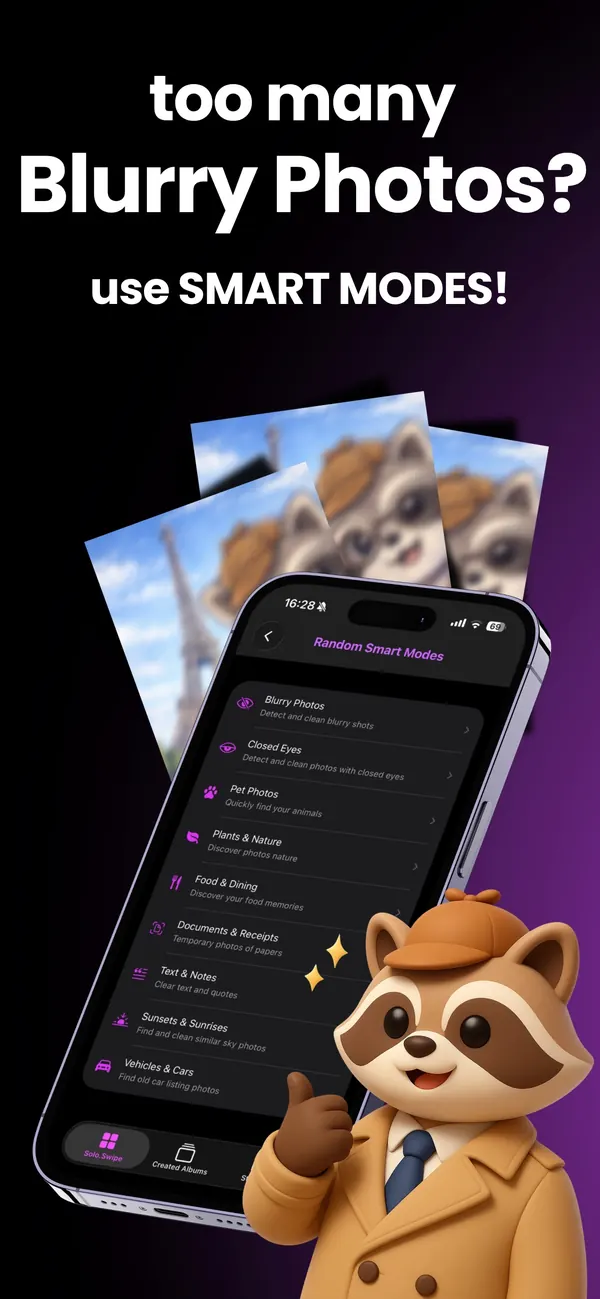
Surfaces photos that look soft or blurry, and photos where someone's eyes look closed.
These are the two categories iOS has no album for, and they're nearly impossible to find manually — blur is invisible at thumbnail size, and you can't scan for a blink in a grid. Having them pulled into a review list turns an unbounded scroll into a short, finishable set.
Blurry Photos lists up to 20 photos that look soft, blurriest first. It measures sharpness across the whole frame, so Portrait-mode shots, soft-background close-ups and smooth scenes such as sky or sea can be flagged too. Check those before you swipe them away.
Closed Eyes finds photos where someone's eyes look closed. It ignores small faces in the background and flags a photo when both eyes of a larger face look closed. It doesn't check whether a better retake exists, so before you swipe left, make sure it isn't the only photo of that moment.
Either way, the results are a shortlist to review, not a list to delete unseen. You still decide on every photo.
After a shoot or an event with people in it, or any time you want a quality pass without going chronologically.
Content detection — documents, text, food, pets, plants, vehicles, sunsets
Groups photos by what's in them, so you can review a whole subject at once.
- Documents & receipts
- Text & notes
- Food & dining
- Pets (cats and dogs)
- Plants & nature
- Vehicles & cars
- Sunsets & sunrises
Documents and text are the practical ones: photographed receipts, forms, whiteboards, parking spaces and Wi-Fi passwords are almost all disposable within a week, and they accumulate silently. Food, pets, plants and sunsets are where people shoot the most duplicates without noticing — six photos of the same plate, forty of the same cat.
Your library has a specific bloat problem you can name, or you want a themed session that's more interesting than going by date.
All of this runs on your phone
Every Smart Mode uses Apple's Vision and Core Image frameworks, executing locally on your device. No image is sent anywhere for analysis — there is no Solo.Swipe photo server. That's a deliberate constraint, not a limitation: the whole point of a photo cleaner is that it works on your most personal collection, and that collection shouldn't have to travel to be useful.
Each scan checks a random sample of up to 4,000 photos on your iPhone and stops after 20 finds, so running it again can surface different photos. Photos stored only in iCloud may not be checked.
Duplicate pairs
The same photo saved twice, cleared in a couple of taps.
Pro feature. Free users can unlock Duplicates for the rest of the day by watching a short ad. Free vs Pro
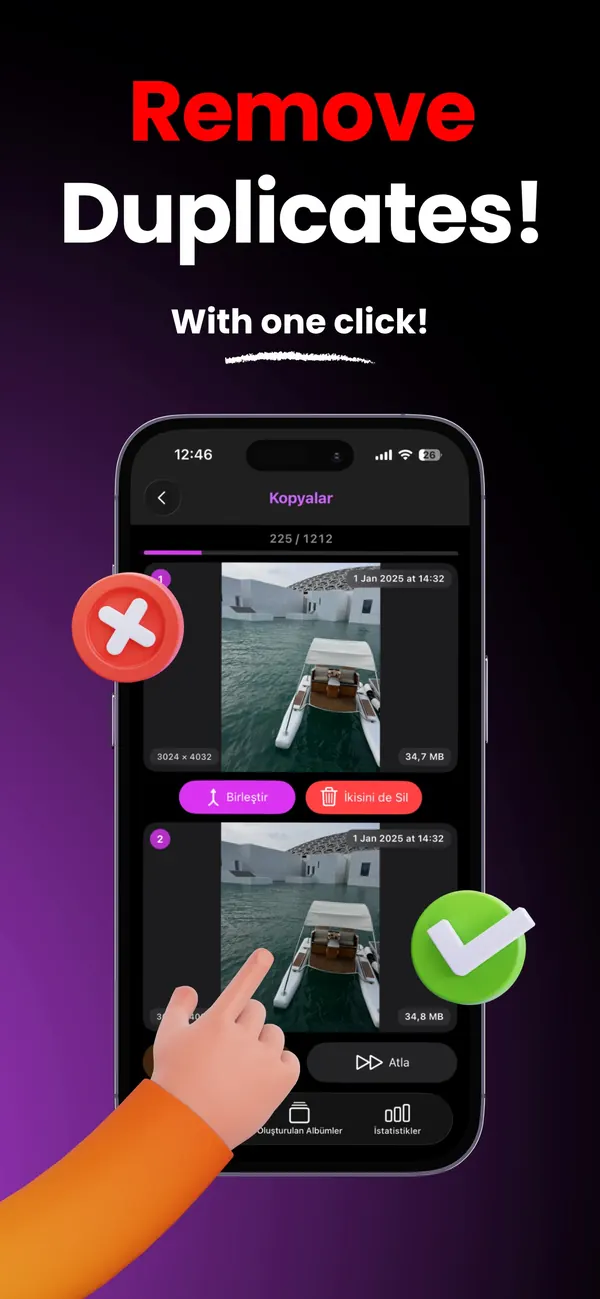
Duplicate pair finder
Finds photos that were saved twice — captured in the same second at the same pixel size — and shows each pair side by side.
For each pair, tap the photo you want to keep and the other is queued for deletion, choose Merge to keep the larger file, or Delete Both. Skip and Undo are always there. Random Duplicates gives you 20 random pairs when you only have a minute.
What it doesn't do: it matches exact copies only. It doesn't group similar-looking shots, retakes taken seconds apart, edited copies, or bursts of three or more frames. Those are different images; for them, browse By Day or Burst Photos, where they sit next to each other and a swipe each clears them fast.
iOS also has a Duplicates album in Photos (under Utilities). Solo.Swipe's version is about the review experience: full-screen pairs, a tap to keep, undo, and the same session as the rest of your clean-up.
You've imported photos twice, saved the same image from a chat more than once, or just want a quick, low-risk win.
More on what iOS catches and what it doesn't: how to find blurry and duplicate photos on iPhone.
Organizing while you clean
Because "I'll organize it later" is a task nobody has ever completed.
Swipe-up album filing
Swipe up on any photo to add it to an album — existing or new — without leaving the review flow.
Cleaning and organizing are usually treated as two projects, which is why only the first ever happens. Merging them costs about two seconds per photo during a session you're already doing, and it means you finish with a library that's both smaller and navigable.
Keep the album structure flat and small. Systems with forty albums fail because filing becomes a decision; systems with six or eight durable buckets survive, because filing becomes a reflex.
Every session, really — but especially after a trip, event or shoot, where the keepers all belong somewhere obvious.
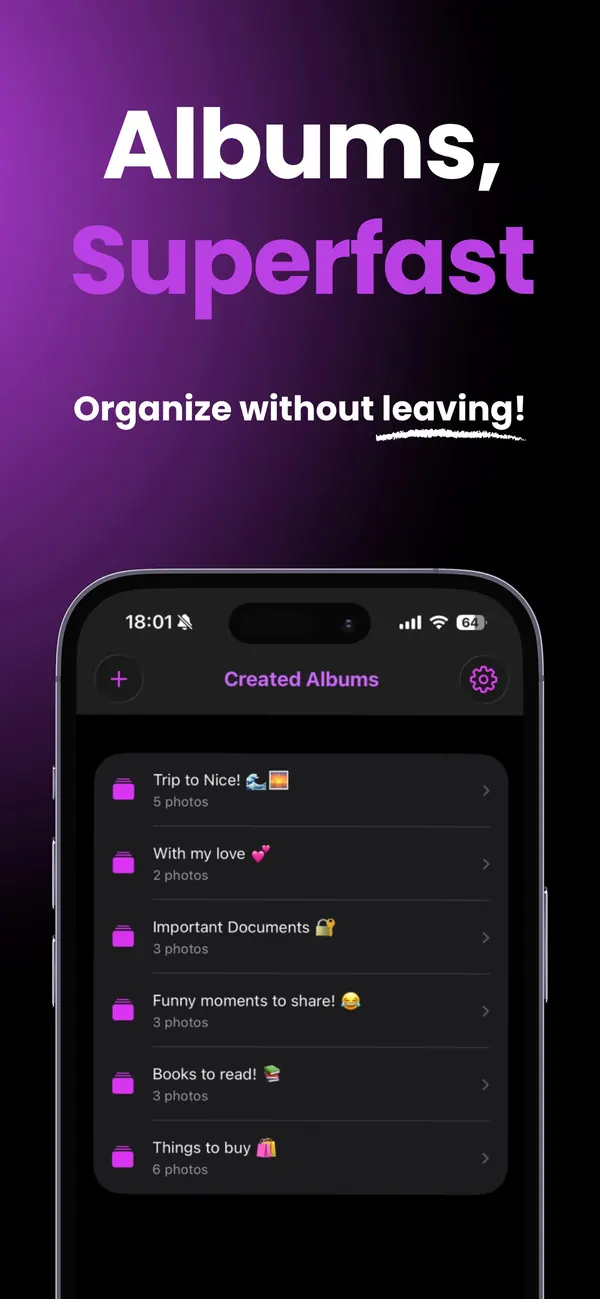
Album browsing and clean-up
Your existing albums are available as review sets, and the Albums tab lets you rename albums, move photos between them, and delete albums in bulk.
Albums decay too: the trip album that accumulated fourteen versions of the same viewpoint, the project album with material from a finished job. Reviewing an album as a card stack is much faster than scrolling one in the Photos app.
When an album has to go, you choose what goes with it: the album and its photos, the album only (photos stay in your library), or the photos only (the album stays). Albums with nothing inside get their own Empty Albums list with Select All. Deleted photos still go to Recently Deleted for 30 days; deleted albums can't be restored.
Making a post from an album? The “Create a post with DUMP” card links to DUMP, a carousel and photo-dump app by the same developer, where you pick that album to build a carousel or collage.
An album has become too big to be useful, or a project it belongs to has finished.
Storage insights
Item count and storage are different problems. This is for the second one.
Storage breakdown by category
Shows which categories are actually holding your space — photos, videos, screenshots, selfies, screen recordings and favorites — and offers to clean 20 from the biggest one.
Photo libraries are lopsided in a way that's counterintuitive. Deleting five thousand old photos can free less space than deleting forty videos. If your goal is a storage number going down, the breakdown tells you where to aim — and it's usually not where instinct points.
| Type | Relative weight | Why |
|---|---|---|
| Video | Very large | Minutes of high-resolution footage can outweigh hundreds of photos. |
| RAW / ProRAW | Very large per file | Uncompressed capture is many times the size of a normal photo. |
| Burst sequences | Large in aggregate | Every frame is stored as a full-size image. |
| Panoramas | Large per file | Very high pixel counts. |
| Screenshots | Small each, large in number | Minor individually; thousands add up and hurt searchability most. |
You've hit a storage warning and need the fastest possible gigabytes back.
Large Files mode
Lists your 20 largest photos, your 20 largest videos, or the 20 largest of both.
Pro feature. Free users can unlock Large Files for the rest of the day by watching a short ad. Free vs Pro
The direct route to a storage problem. A dozen decisions here typically does more than a thousand elsewhere — a forgotten screen recording, a forty-minute video of a concert you've never rewatched, an export you saved twice.
You need space right now, before a shoot or a flight.
Session recovery reporting
Each session summary shows what you freed, deleted, kept and reviewed, how long it took, and roughly how many new photos that space would hold.
Partly motivation, partly information — it tells you whether the category you just cleared was worth the time, which shapes where you go next. One caveat worth knowing: on iPhone, space isn't actually reclaimed until items leave the Recently Deleted album, which happens automatically after 30 days or immediately if you empty it yourself.
You want to know whether your cleanup strategy is actually working.
Full method: how to free up iPhone storage taken by photos.
Habit & progress
A camera roll refills every week. A one-time purge solves it for a month; a routine solves it permanently.
Daily space goal and the progress ring
Pick a daily storage target — 250 MB, 500 MB (the default), 1 GB, 2 GB, 3 GB or 5 GB — and watch the ring fill as you free space. Pass it and the ring keeps looping.
A concrete target beats a duration. "Free 500 MB" has a visible end you can see approaching; "ten minutes" is something you can quietly abandon at minute three. It also reframes the task from "clean my entire camera roll" — which is infinite and paralysing — to "today's 500 MB", which you can finish before the kettle boils.
You're starting out, or you've tried cleanup before and stalled.
Streaks and Streak Freezes
Review at least 10 photos a day to keep your streak going. It's separate from the space goal, so a quick day still counts.
Streak Freezes protect it on busy days: you can hold up to 3, they're used automatically, you can earn one by watching an ad, and Pro adds 2 a month. Twenty achievements mark milestones for space freed, photos reviewed and deleted, streak length and sessions.
Streaks aren't magic — they work because they make the invisible visible. The value isn't on the days you feel like cleaning; it's on the day you don't, when a number you'd rather not reset is enough to get you to do a two-minute batch.
You're trying to make this a routine rather than a one-off project.
Widgets on the Home Screen and Lock Screen
Four optional widgets (iOS 17 or later): Streak with Detective Raccoon, also on the Lock Screen; Daily Photo with a Shuffle button; Space Freed with your week of cleaning; and Quick Clean, which jumps straight into a mode.
The hardest part of any habit is remembering it exists. A widget on the home screen is a passive reminder that costs nothing and doesn't interrupt — no notification, no badge, just there when you unlock your phone.
Widget data is shared with the app through a local App Group container on your device; the widgets don't send anything anywhere.
You keep forgetting to do a session, and you'd rather not add another notification.
Session statistics
A running record of what you've reviewed, kept and deleted, with a 7- or 30-day activity chart, a cleaning calendar and your best day.
Useful mostly as evidence that the small sessions add up — which is the thing that's hardest to believe when you're forty photos into a library of thirty thousand. Your statistics are stored on your device and can be reset from Settings at any time.
You want to see progress across weeks rather than within one session.
The routine these are built around: the Camera Roll Reset.
Devices, languages & accessibility
Where Solo.Swipe runs, and who it works for.
iPhone, iPad, Mac and Vision Pro
A universal app for iPhone and iPad (iOS or iPadOS 16 or later). It also runs as an iPad app on Macs with Apple M1 or later (macOS 13+) and on Apple Vision Pro.
Widgets need iOS 17 or later. The app speaks 11 languages — English, Arabic, Chinese (Simplified), French, German, Italian, Japanese, Korean, Portuguese (Brazil), Spanish and Turkish — and you can switch language inside the app.
VoiceOver and larger text
On the swipe deck, Keep, Delete, Album and Skip are available as VoiceOver actions, so you don't need to perform a swipe gesture at all.
Version 4.2 improved VoiceOver support across the app and added support for larger text sizes (Dynamic Type). The App Store lists VoiceOver, Dark Interface and Differentiate Without Color Alone as supported. If something doesn't work well with your setup, email solostaseraofficial@gmail.com.
Privacy & safety
Not a feature list item so much as a constraint the whole app is built inside.
On-device processing
Your library is read through Apple's PhotoKit framework and analysed with Apple's Vision and Core Image frameworks, locally on your iPhone.
There is no Solo.Swipe photo server. Photos are never uploaded, copied off the device or shared with third parties — which matters most for the things people don't think about until they do: unpublished work, client deliverables, documents, photos of where you live.
There's also no account and no sign-up, so nothing is tied to an identity in the first place.
Some app data does leave the device. Usage statistics and crash reports go to Google Firebase (you can turn this off in Settings › Privacy › Share Usage Data). The free version shows ads via Google AdMob, which receives device and ad-request data — never your photos; Pro removes ads. Place names are looked up with Apple's geocoder. Details in the privacy policy.
Confirmation before deletion, and a 30-day safety net
Nothing is deleted until you confirm at the end of a session, and deletion is carried out by iOS.
Marked photos are shown back to you before anything happens. When you confirm, the request goes to iOS, which runs its own confirmation and moves the items to Apple's Recently Deleted album — where they can be restored for 30 days.
This is what makes fast decisions reasonable. You can swipe on instinct precisely because being wrong costs a tap sometime in the next month.
Because deleted items linger for 30 days, storage isn't reclaimed until they leave. Empty Recently Deleted manually if you need the space now.
Revocable access, local data
The app needs photo library access to work. You can limit it to selected photos or revoke it any time in iOS Settings.
Your photos and library data — preferences, session statistics, streaks and album references — stay on the device (UserDefaults and a local App Group container) and are removed when you delete the app. Usage statistics (kept up to 14 months) and crash reports (up to 90 days) are held by Google Firebase under a random installation ID, not your name, email or Apple Account. If you allow tracking, Google may also link them to your advertising identifier. You can turn this off in Settings › Privacy › Share Usage Data.
You can also reset statistics and review history from inside the app's Settings without deleting anything.
Read next
Pick one category and start
Screenshots, or the last three days. Five minutes, and you'll have finished something.
