
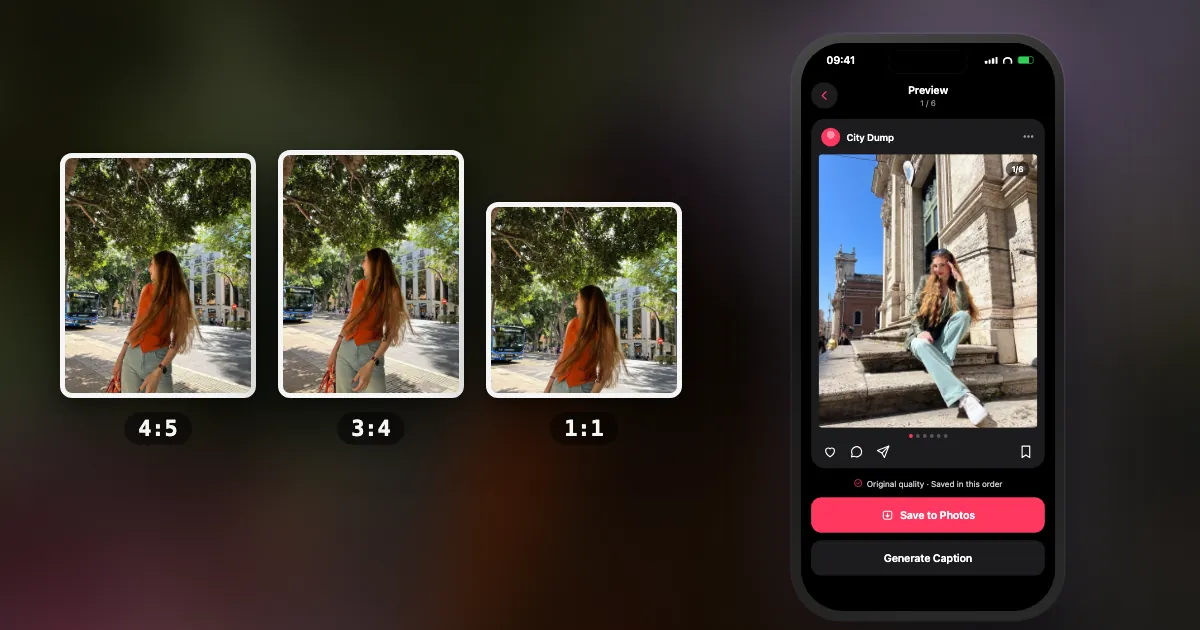
What size should an Instagram carousel be?
1080 × 1350 pixels (4:5 portrait) is the safe default for designed slides, and 1080 × 1440 (3:4) shows straight-from-camera iPhone photos uncropped. Square is 1080 × 1080, landscape is 1080 × 566, and every slide should match the ratio of slide one.
| Format | Pixels | Ratio | Use |
|---|---|---|---|
| Portrait | 1080 × 1350 | 4:5 | Default choice — works everywhere |
| Tall portrait | 1080 × 1440 | 3:4 | Phone photos uncropped; the tallest option, and matches the profile grid (supported since May 2025) |
| Square | 1080 × 1080 | 1:1 | Grids, collages, symmetrical layouts |
| Landscape | 1080 × 566 | 1.91:1 | Wide scenery — takes least feed space |
| Story / Reel | 1080 × 1920 | 9:16 | Not carousels — separate formats |
The essentials
- Instagram displays photos at up to 1080 px wide. A larger, clean source is fine (DUMP renders collage pages at 2160 px); what hurts is a file that was already compressed once.
- Exporting slides? A high-quality JPEG in sRGB. A PNG gains nothing once Instagram re-compresses it.
- Every slide the same ratio as slide one.
- Maximum 20 slides, minimum 2.
Do all carousel slides need the same aspect ratio?
Yes, in effect. Instagram applies the aspect ratio of the first slide to every following slide, so a portrait photo placed after a square first slide is cropped to square and loses its top and bottom.
This is the single most consequential rule in the entire format, and Instagram gives you no warning about it.
When you build a carousel, the aspect ratio you choose on the first slide is applied to every subsequent slide. Choose square for slide one and your beautiful vertical shot on slide four gets its top and bottom cut off. Choose portrait first and your landscape photos get cropped in from the sides.
Instagram crops every slide to that shape. You can tap a slide to reposition it inside the crop, but you can't keep its full frame.
There are two ways to handle it:
- Pick a ratio first, then choose photos that suit it. Decide 4:5 before you start, and let that guide which shots make the cut.
- Pad the odd ones out. Place a mismatched photo on a background of the correct ratio — a coloured, textured or blurred canvas — so nothing is cut off. This is the standard solution and it usually looks intentional rather than compromised.
The second approach is why so many dumps use paper textures and coloured backgrounds. It started as a fix for a cropping problem and became an aesthetic.
Should you upload photos larger than 1080 pixels?
Not needed, and not harmful if the file is clean. Instagram resizes anything wider than 1080 px once; what costs quality is a file another app already re-compressed. A camera original or a clean 2160 px export is fine; a screenshot or a re-saved copy is not.
The instinct is that a bigger file must produce a better result. On Instagram it simply doesn't matter much: feed photos are shown at up to 1080 px wide, and anything wider is sized down to 1080 (Instagram Help Center). That happens whether you start from 1080 px or 4,000 px, so a bigger clean file is neither better nor worse once it's posted.
What does make a visible difference is how many times the photo was compressed before Instagram got it. A screenshot, a copy saved from a messaging app or an export from an app that re-saves at low quality has already lost detail, and Instagram's own pass then works on those artefacts. The damage shows first in skin tones, night photos and smooth gradients.
The same logic applies to every app in the chain. If an editor re-compresses your photo before Instagram gets it, you have added a compression pass Instagram was going to perform anyway. The ideal pipeline touches the file as few times as possible.
Sizing a single post, a Story or a Reel instead? See the Instagram post size guide.
How does Instagram crop posts in the profile grid?
Instagram displays feed posts at their full ratio but crops every post to 3:4 in your profile grid. A 4:5 portrait loses only a thin strip from the sides; a 1.91:1 landscape loses most of the frame.
Instagram displays feed posts at their full ratio, but your profile grid crops every post to 3:4. This changes what "safe" means depending on which view you are designing for.
| Uploaded as | In the feed | In your profile grid |
|---|---|---|
| 3:4 portrait | Full image | Full image, no crop |
| 4:5 portrait | Full image | Thin strip cropped from the sides |
| 1:1 square | Full image | Cropped from the sides (about a quarter of the width) |
| 1.91:1 landscape | Full image | Heavily cropped from the sides — most of the frame lost |
Practical consequence: keep faces, text and anything essential away from the extreme edges of your first slide, because that slide is your grid thumbnail. 3:4 isn't cropped at all, and 4:5 loses only a thin strip, which is why both are safe choices.
Which aspect ratio should you use?
Use 4:5 portrait for designed slides and 3:4 for straight-from-camera photos. Both are tall, so they get more on-screen time as people scroll, and both survive the 3:4 profile grid with little or no crop.
4:5 portrait is the safe default for anything you design. Every template and tool supports it, it's tall in the feed, and it loses only a thin strip in the profile grid.
Should you use 3:4 or 4:5?
Both work. 3:4 (1080 × 1440) is the shape most phone cameras shoot, so photos post uncropped and fill the profile grid exactly. 4:5 is still the safest choice for designed slides, because most templates and tools are built around it.
Instagram added 3:4 support for single posts and carousels in May 2025 (9to5Mac), a few months after the profile grid switched from squares to taller rectangles (Business Today). If your dump is straight-from-the-camera iPhone photos, 3:4 shows the whole frame, uncropped. If it mixes designed collage pages, stick to 4:5. One honest note: DUMP's collage canvas doesn't have a 3:4 preset (4:5, 1:1, 1.91:1 and 9:16 are built in), but you can set Ratio → Other to 3 × 4. Its Swipe Carousel mode saves your original photos, so 3:4 iPhone shots stay 3:4 and you choose the crop in Instagram.
1:1 square works for structured content. Grid collages, before-and-afters and anything symmetrical read more cleanly as squares. Square also makes mixed-orientation photos easier to pad, since you have equal room on all sides.
1.91:1 landscape is rarely the right answer. It takes the least feed space, gets cropped hardest in the grid, and on a phone it is small. Use it only when the image genuinely needs the width — a horizon, a wide interior — and accept the trade-off.
What size should Instagram carousel videos be?
Video slides follow the same ratio rule as photos: slide one decides. If you export a clip, 1080p at 30 fps in standard colour (SDR) is plenty for a phone screen.
Videos in a carousel follow the same ratio rule as photos: slide one decides, everything else conforms.
| Property | Suggested export |
|---|---|
| Resolution | 1080p |
| Format | H.264 or HEVC (MP4 or MOV) |
| Frame rate | 30 fps |
| Colour | Standard (SDR), not log or HDR |
Clips straight from your camera can go up as they are. If you edit first, a 1080p export uploads faster than 4K and looks the same on a phone screen.
Should you upload JPEG or PNG to Instagram?
For an exported slide, a high-quality JPEG in sRGB. Instagram re-compresses every upload, so a much larger PNG gains nothing. Camera photos can go up as they are.
Use JPEG for exports. The extra size of a PNG buys nothing once Instagram re-compresses it. People sometimes keep PNG for transparency, but a post has no transparent background, so it gets flattened anyway. Flatten it yourself, onto the background you actually want.
High quality, not maximum. A heavily compressed export pre-damages the file; a maximum-quality one is just larger. Around 85–95% in most editors is a sensible range.
sRGB for desktop exports. Adobe RGB and ProPhoto files can look flatter or shifted in apps that don't handle them.
How do you handle photos with different aspect ratios?
Pad each photo onto a canvas of your target ratio so nothing is cropped. The alternatives — cropping everything yourself, or only using photos that already match — either lose image area or quietly remove your best shots.
Real camera rolls are not one ratio. You have vertical phone photos, the odd landscape, a square screenshot, a video shot in portrait. Getting them into one carousel without destroying half of them is the practical problem this whole guide leads to.
Three approaches, in order of how good the result looks:
- Pad each photo onto a canvas of the target ratio. Every image keeps its full frame, nothing is cropped, and the background becomes part of the look. Best result, most work by hand.
- Crop everything to the target ratio deliberately. You choose what is lost instead of letting Instagram choose from the centre. Fast, but you lose real image area.
- Only include photos that already match. Simplest, and it quietly removes some of your best shots from consideration.
DUMP makes the first option quick: pages have a fixed ratio you choose once, and you place, fit or frame each photo on that canvas, so nothing gets cropped by Instagram later. In Swipe Carousel mode nothing is re-encoded: DUMP adds your original files to the album, so the file Instagram receives is the one your camera made.
Either way, the ratio decision is made before you open Instagram, which is the only place it can be made safely. Choosing which photos go in is the other half of the job; see how to pick photos for a photo dump.
Frequently asked questions
What size should an Instagram carousel be?
1080 × 1350 pixels (4:5 portrait) is the safe default for designed slides, and 1080 × 1440 (3:4) shows straight-from-camera iPhone photos uncropped. Square is 1080 × 1080 and landscape 1080 × 566. Every slide should match the ratio of slide one.
Do all slides in a carousel need the same aspect ratio?
Yes, in effect. Instagram applies the first slide's ratio to every slide after it, so a portrait photo after a square first slide is cropped to square. Pick one ratio and pad or crop the odd photos yourself.
Should I upload photos larger than 1080 pixels wide?
Not needed, and not harmful if the file is clean. Instagram resizes anything wider than 1080 px once. What costs quality is a file another app already re-compressed, such as a screenshot or a re-saved copy.
What size should carousel videos be?
Videos follow the same ratio rule as photos: slide one decides. If you export a clip, 1080p at 30 fps in standard colour (SDR) is plenty for a phone screen.
Stop letting Instagram choose your crop
Set the ratio once in DUMP (1:1, 4:5, 1.91:1, 9:16 or custom) and every collage page is built to match, rendered at 2160 px and saved to Photos in order, ready to post.
 On a computer?Scan with your iPhone camera
Free · iPhone & iPad · iOS 18.6+ · No account · Works offline
Sources
- Instagram Help Center, photo resolution article, checked 16 Oct 2026: photos are shown at up to 1080 px wide and wider ones are sized down; landscape goes down to 1.91:1 (1080 × 566). Its list of shapes predates 3:4 support.
- 9to5Mac, 29 May 2025: Instagram supports 3:4 photos in single posts and carousels.
- Business Today, 21 Jan 2025: the profile grid moves from squares to taller rectangles.
- TechCrunch, 8 Aug 2024: Instagram carousels hold up to 20 photos and videos.
- Instagram Help Center, "Share multiple photos", checked 16 Oct 2026: the shape you choose applies to every item, and you can tap a photo to adjust how it fits in the frame.