 Solo.Swipe
Delete Photos Where Someone Blinked Without Losing the Moment
Quick answer
Only delete a blink photo if you have a better shot of the same moment. On iPhone, look at the photos taken just before and after it, check whether it's a Live Photo with an open-eyes frame you can make the key photo, and delete the blink only when a good retake exists. Solo.Swipe's Closed Eyes mode gathers the candidates: up to 20 photos where a face's eyes both look closed. It doesn't check for a retake, so apply the same rule before you swipe left.
Every family album has them: the group photo where one person blinked, the portrait taken a split second too late. Deleting them is satisfying. Deleting the only photo of your grandmother at that dinner is not. The fix is one simple rule, and it works with or without an app.
Why is deleting blink photos risky?
Because a closed-eyes photo is sometimes the only photo of that person at that moment. Eyes closed is a flaw; an empty spot in your memories is a loss. A blink is only clutter when a better version sits right next to it.
Closed eyes also isn't always a blink. People squint when they laugh, some have naturally narrow eyes, and sunglasses hide eyes entirely. A tool that flags “eyes look closed” on its own will flag your happiest photos. That's why the rule below compares photos instead of judging one at a time.
How do you delete blink photos safely on iPhone?
Use the retake rule: find the blink, look for a better shot of the same moment, and only then delete. In the Photos app it takes a few seconds per photo.
-
Find the moment
Scroll to the event and look for runs of nearly identical thumbnails. People take group photos in batches, so blinks sit next to their retakes.
-
Open the blink and swipe to its neighbours
Swipe left and right in full-screen view. Is there a frame of the same people, same pose, with everyone's eyes open? Zoom in on faces to be sure.
-
Check for a hidden open-eyes frame
If it's a Live Photo, a frame from a second before or after may be perfect. Tap Edit, tap the Live button, move the white frame along the viewer to a moment with open eyes, then tap Make Key Photo. You've just fixed the photo instead of deleting it.
-
For bursts, keep the best frame
Open the burst, tap Burst (it shows the number of frames), tick the frames with open eyes, then tap Done. Apple's suggested frames are marked with gray dots.
-
Delete the blink only if the retake stays
Favorite the keeper first, so you don't delete it by mistake in a later clean-up. Then delete the blink. It sits in Recently Deleted for 30 days if you change your mind.
Which photo should you keep when different people blink in each shot?
Keep the one where the most important faces are open, and when in doubt keep two. Two good-enough group photos cost almost nothing; the wrong deletion can't be redone later.
| Situation | Keep |
|---|---|
| One retake has everyone's eyes open | That one. Delete the blinks. |
| A different person blinks in each retake | The one where the guest of honor (the birthday child, the couple, grandma) looks best. Keep a second if it's close. |
| There's only one photo of the moment | Keep it, blink and all. |
| Someone's squinting from laughing | Keep it. That's an expression, not a mistake. |
| It's a Live Photo | Try Make Key Photo first; you may not need to delete anything. |
How does Solo.Swipe's Closed Eyes mode decide?
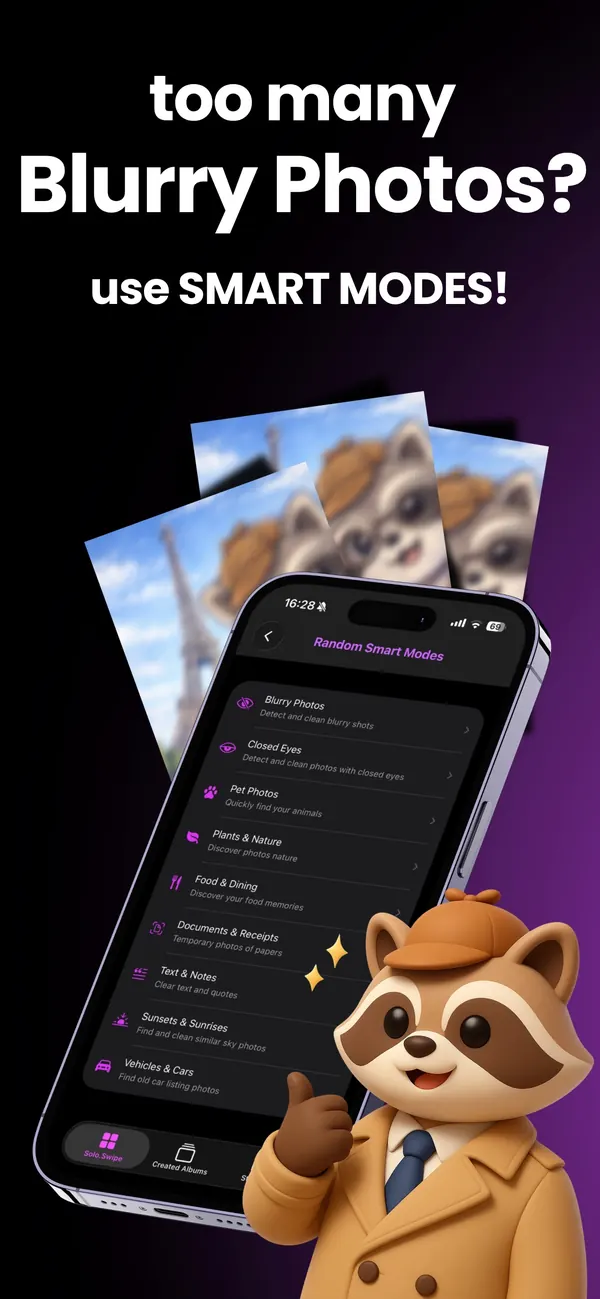
It flags faces where both eyes look closed and leaves the retake check to you. Here's what the App Store version (5.0) does on your iPhone:
- It checks a random sample of up to 4,000 photos on your iPhone with Apple's Vision framework and lists up to 20 finds.
- It finds faces and measures both eyes. A face counts if it covers about 5% of the frame or more and both eyes fall below an openness threshold. Small faces far in the background are ignored, because their eye points aren't reliable.
- It doesn't look for a retake, and it can't tell a blink from a laughing squint. So the only photo of a moment can appear on the list, and so can a happy squint you'd never delete.
- Run it again for a different sample. Each run looks at another random part of your library.
That's why the retake rule above still applies to every card: it's your two-second check before a swipe left.
Everything runs on the device. Faces aren't uploaded or used to identify anyone; the app only measures how open the eyes look.
What won't the Closed Eyes mode catch?
Blinks outside this run's sample, and faces it can't read reliably. In practice that means:
- Photos outside the random sample, or past the 20-photo limit of a run. Open the mode again for another sample.
- Faces too small to read reliably (people far in the background).
- Eyes hidden by sunglasses, hair or a turned head, which may not be read as closed.
- A single blinking person in a big group, if their face is small in the frame.
For those, use the manual steps above. Think of the mode as a fast way to gather candidates, not as a judge of which photo should go.
Pair it with the blur sweep
Blinks and blur usually come from the same events: parties, kids, low light. Do Blurry Photos and Closed Eyes back to back for a five-minute clean-up of a whole evening. Parents get a full routine on the page for parents.
Questions
Can iPhone find photos with closed eyes automatically?
The Photos app doesn't have a closed-eyes collection among its Utilities or Media Types. You can find blinks by browsing an event's retakes yourself, or use an app that detects them. Solo.Swipe's Closed Eyes mode gathers likely blink photos for you to check; it doesn't look for a retake, so you apply the retake rule yourself.
How do I fix a photo where someone blinked?
If it's a Live Photo, open it, tap Edit, tap the Live button, move the frame to a moment where eyes are open and tap Make Key Photo. If it's a burst, open the burst and keep the frame with open eyes. Otherwise, keep the best retake and delete the blink.
Why didn't Solo.Swipe flag a photo where my eyes are closed?
Each scan checks a random sample of your library and stops at 20 finds, so the photo may not have been in this sample; open the mode again for another one. It also ignores small faces in the background, and eyes hidden by sunglasses or a turned head may not be read as closed.
Does Closed Eyes work on group photos?
Yes. If any readable face in the photo has both eyes closed, the photo is listed, even if everyone else looks great. Before you swipe left, check that you have a group shot of that moment with everyone's eyes open.
Are faces uploaded or stored?
No. The analysis runs on your iPhone with Apple's Vision framework, and photos never leave your device. Solo.Swipe doesn't recognize who people are; it only measures how open the eyes look.
Related guides
Sources
- Apple iPhone User Guide, Edit Live Photos (Make Key Photo).
- Apple iPhone User Guide, Capture action shots with Burst mode (choosing frames to keep; gray dots mark suggestions).
- Apple iPhone User Guide, Delete or hide photos and videos (Recently Deleted for 30 days).
- How the Closed Eyes mode works describes Solo.Swipe 5.0, the App Store version released on 13 October 2026.