 Solo.Swipe
How to Find and Delete Blurry Photos on iPhone
Quick answer
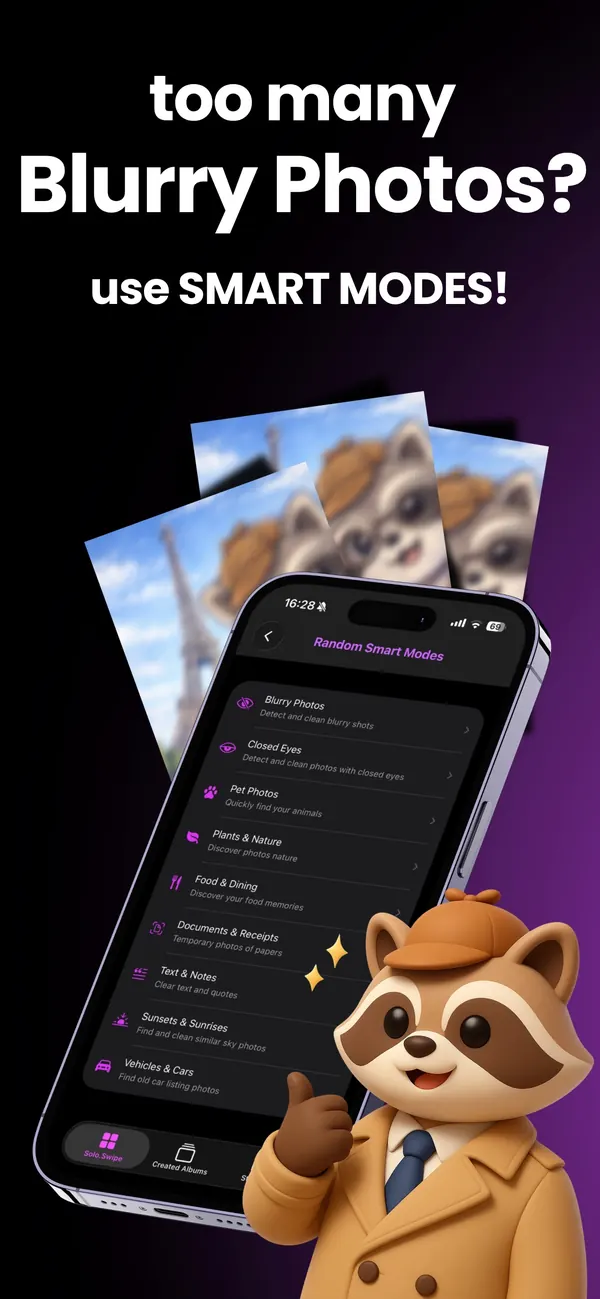
The Photos app has no “blurry” album, so you either check photos yourself or let an app make a shortlist. By hand: go through one event at a time, open suspicious shots full screen, zoom in on the subject, and among retakes keep the sharpest. With Solo.Swipe's Blurry Photos mode, a scan on your iPhone lists up to 20 likely blurry shots, blurriest first. It scores the whole frame, so give Portrait-mode photos and soft-background close-ups a second look. You still decide on every photo.
Blurry photos are the clutter nobody goes back for. They look fine as thumbnails, they hide between good shots, and there's no button in Photos that rounds them up. Here's how to find them quickly, what makes a photo blurry in the first place, and which blurry photos you should keep anyway.
Should you fix a blurry photo or delete it?
Delete it if a sharper version of the same moment exists; keep it if it's the only one. Editing can brighten and add contrast, but it can't recover detail that missed focus or a shaky hand never captured.
Keep a blurry photo when:
- It's the only photo of that person, place or moment. A soft photo of your grandmother laughing beats no photo.
- The blur is the point: motion blur of a dancer, light trails, a deliberate long exposure.
- It's a Live Photo with a sharper frame inside. Open it, tap Edit, tap the Live button, move the white frame to a sharp moment and tap Make Key Photo. (Apple notes that on iPhone 15 and later, a Live Photo with a portrait effect loses the effect if you change the key photo.)
Everything else, the fifth near-identical blurry try, the pocket shot, the photo of the floor, can go.
What actually makes a photo blurry?
Three different things, and they look different once you know them. Telling them apart helps you decide fast.
| Type | What you see | Usual verdict |
|---|---|---|
| Missed focus | The subject is soft; often something behind or in front of it is sharp instead. | Delete if a retake exists. |
| Camera shake | Everything smears in one direction, like a double outline. Common indoors and at night. | Delete if a retake exists. |
| Subject motion | The background is sharp but a running child or pet is smeared. | Keep if it captures the moment; delete if a sharp one exists. |
| Deliberate blur | A sharp subject on a soft background (Portrait mode, close-ups), or intentional motion. | Keep. This isn't a mistake. |
Swipe the table sideways on small screens.
How do you find blurry photos on iPhone without an app?
Search where blur happens, judge at full size, and compare retakes instead of judging photos alone. It works, it's just slow for a big library.
-
Start where blur lives
Night out, concerts, indoor parties, kids' birthdays, pets, anything shot from a moving car. Those events hold most of your blurry photos, so start there instead of at the top of your library.
-
Work one event at a time
Scroll to the event and look for runs of almost identical thumbnails. Retakes sit next to each other, and the blurry ones are usually among them.
-
Never judge from thumbnails
A small thumbnail hides blur completely. Open the photo full screen and pinch to zoom on the face or the main subject before you decide.
-
Keep the sharpest of each group
You don't need an absolute judgement, only a relative one: of the four tries, which is sharpest? Keep that one, favorite it if it's great, delete the rest.
-
Delete, then empty Recently Deleted later
Deleted photos stay in Recently Deleted for 30 days. Leave them there for a week in case you change your mind, then empty it to get the space back.
Apple's Photos app does have smart collections in Collections › Utilities (receipts, QR codes, handwriting, recently edited and more), but blurry photos aren't one of them.
Why do blur detectors flag portrait photos?
Because a detector that averages sharpness over the whole frame sees a sharp face on a soft background as mostly blurry. In a Portrait-mode photo or a food close-up, the blur is on purpose and covers most of the picture, so a naive score says “blurry” and suggests deleting one of your best shots.
That's the false alarm that makes people stop trusting cleaner apps. The fix is quick: before you swipe a suggestion away, zoom in on the subject. If the face, plate or flower is sharp, the soft background is on purpose and the photo is a keeper.
How does Solo.Swipe decide what's blurry?
It measures edge sharpness across the whole frame, so treat its list as a shortlist, not a verdict. Here's what the App Store version (5.0) does on your iPhone when you open Smart Modes › Blurry Photos:
- It checks a random sample of up to 4,000 photos on your iPhone and lists up to 20 that look soft, blurriest first. Open the mode again and it looks at another sample.
- It scores the whole frame, so the portrait trap above applies: Portrait-mode shots, soft-background close-ups and dark or misty scenes can appear on the list. Give those a second look.
- It judges a quick preview and doesn't download iCloud originals while scanning. If Optimize iPhone Storage is on, open a photo at full size before you delete it; one that looks sharp there is a keeper.
- It never deletes anything by itself. Every card waits for your swipe, then the Final Review screen and the iOS prompt.
The analysis uses Apple's Vision and Core Image frameworks on your device. Photos are never uploaded.
How do you review a blurry shortlist safely?
Treat any list of “blurry” photos as suggestions, not a verdict. Whether a tool or your own quick scroll made the list, the same checks apply:
- Look at faces at full size. Slight softness on a landscape is fine; on a face it's what you notice.
- Ask “is this the only one?” If yes, keep it, blurry or not.
- Check Live Photos for a sharp frame before deleting.
- Work in short batches. Twenty decisions, confirm, done. Fatigue is when keepers get deleted.
- Keep the safety net. In Solo.Swipe every deletion goes through a Final Review screen and then the iOS prompt, and lands in Recently Deleted for 30 days.
Blink shots are the other half of this job, and they need a different rule. See how to delete photos where someone blinked.
What Solo.Swipe won't do
It doesn't sharpen or fix photos, and it doesn't group similar-looking photos. It can list a Portrait-mode shot or a moody night scene that you'd rather keep, and very slight shake isn't always flagged. Each run looks at a random part of your library, not all of it.
Questions
Does iPhone have a blurry photos album?
No. The Photos app's Utilities collections include receipts, QR codes, handwriting, recently edited photos and others, but not blurry photos. You find them by hand or with an app that analyses sharpness.
Can I unblur a photo on iPhone?
Not really. Editing can improve light and contrast, but it can't restore detail that missed focus or camera shake never captured. If the photo is a Live Photo, another frame may be sharper: open it, tap Edit, tap the Live button, choose a sharper frame and tap Make Key Photo.
Will Solo.Swipe delete blurry photos automatically?
No. It only suggests them. You swipe each one, review the list on the Final Review screen, and confirm the iOS prompt. Deleted photos stay in Recently Deleted for 30 days.
Why didn't it flag a photo I think is blurry?
Each scan checks a random sample of your library and stops at 20 finds, so the photo may simply not have been in this sample; open the mode again for another one. Very slight shake may also not lower the whole-frame sharpness score enough to be flagged.
Are my photos uploaded to check for blur?
No. Solo.Swipe analyses photos on your iPhone with Apple's Vision and Core Image frameworks, and the photos never leave your device. The app does send usage statistics and crash reports to Google Firebase (you can turn this off in Settings › Privacy › Share Usage Data), and the free version shows ads.
Related guides
Sources
- Apple iPhone User Guide, Find receipts, QR codes, recently edited photos, and more (the Utilities collections).
- Apple iPhone User Guide, Edit Live Photos (Make Key Photo; portrait-effect note for iPhone 15 and later).
- Apple iPhone User Guide, Delete or hide photos and videos (Recently Deleted for 30 days).
- How the Blurry Photos mode works describes Solo.Swipe 5.0, the App Store version released on 13 October 2026.