 Solo.Swipe
Not Enough Storage to Update? Free Space in 10 Minutes
Quick answer
Free space in this order: offload apps you rarely open, delete your biggest videos and screen recordings, then empty Recently Deleted, because deleted photos keep using space for 30 days. If the update still won't fit, let your iPhone temporarily remove apps when it asks (Apple reinstalls them afterwards), or update from a Mac or PC with a cable. You don't need to buy more iCloud storage: the update needs room on the iPhone itself.
The iOS 27 update is waiting, your iPhone says there isn't enough space, and the obvious fix (deleting a few hundred photos) barely moves the number. That's normal. Space on a phone is lopsided: a handful of files hold most of it. This guide is the order that frees the most space in the least time, built on Apple's own advice.
Not updating, just out of space? iPhone storage full: what to delete first is the broader guide.
How much free space does an iOS update need?
There's no single number: it depends on your iPhone model and the version you're updating from, and your iPhone tells you when it's short. Go to Settings › General › Software Update. If there isn't enough room, it says so there, and that's the figure to beat.
Two things catch people out:
- The download isn't the whole story. Installing needs working room too. That's why iOS sometimes offers to temporarily remove apps to finish an update, even when the download itself fitted.
- Apple Intelligence wants its own space. Apple says the next generation of Apple Intelligence needs up to 8 GB of storage on most supported iPhones, and up to 14 GB on iPhone 17 Pro, iPhone 17 Pro Max and iPhone Air. If you plan to use it, leave that much headroom on top of the update.
A practical target: free a few gigabytes more than the update asks for, so you're not doing this again in a week.
What should you delete first to update your iPhone?
Start with what's big and easy to replace: rarely used apps (offload them), then long videos and screen recordings, then the Recently Deleted album. Ten thousand old photos weigh less than a few dozen long 4K clips, so the order matters more than the effort.
-
Look at the bar 1 min
Open Settings › General › iPhone Storage and let the chart load. You'll see which apps use the most space, and a Recommendations section. If it offers to review large videos or old attachments, tap it: it shows you the content you can delete.
-
Offload apps you haven't opened in months 2 min
Tap a big app you rarely use, then Offload App. Apple's wording: it "frees up storage used by the app, but keeps its documents and data". The icon stays, and one tap reinstalls it. Games and streaming apps with downloads are usually the biggest wins.
-
Delete the biggest videos and screen recordings 4 min
In Photos, go to Collections › Media Types and open Videos (and Screen Recordings, if you have them). Look for accidental recordings, clips you already shared, and long videos of things you'll never rewatch. A shortcut to the biggest ones is further down.
-
Clear streaming downloads and old message attachments 2 min
Apple's own list of common storage hogs includes videos downloaded for offline viewing in streaming apps, and conversations full of attachments in Messages. Remove downloads you've already watched.
-
Empty Recently Deleted 1 min
In Photos: Collections › Utilities › Recently Deleted › View Album, unlock, tap Select, choose everything, then Delete. Until you do this, everything from step 3 is still taking up space. Once emptied, those items can't be recovered, so glance through first.
The one-line version
Offload big unused apps → delete long videos → empty Recently Deleted → try the update again. Most people never need step four of the next section.
Why is storage still full after deleting photos?
Because deleted photos and videos go to Recently Deleted and stay there for 30 days, still using space. Apple's note is plain: deleted items "are kept in the Recently Deleted collection for 30 days before being permanently removed". Empty it (step 5 above) to get the space back now.
Two more reasons the number moves less than you expect:
- Optimize iPhone Storage is on. With iCloud Photos, Apple turns this on by default: full-resolution originals live in iCloud and your iPhone keeps smaller versions. Deleting photos then frees less on the phone than the file sizes suggest.
- Photos weren't the problem. If Photos shows 8 GB and an app shows 30 GB, the camera roll isn't where the space is. That's why step 1 comes first.
One warning before you delete in bulk: if iCloud Photos is on, a deletion on your iPhone also deletes the photo on your other devices. It's sync, not a backup.
Do you need to buy more iCloud storage to update?
No. Apple says it directly: "You don't need to purchase more iCloud storage." The update needs free space on your iPhone, and iCloud storage is a separate thing. A bigger iCloud plan only helps indirectly, if you then turn on iCloud Photos with Optimize iPhone Storage so the phone keeps smaller copies.
What if the update still won't fit?
Let iOS temporarily remove apps, or update from a computer. Both are Apple's own suggestions.
- Temporarily remove apps. If the update asks to temporarily remove apps because it needs more space, tap Continue. Apple says the apps are automatically reinstalled after installation is complete.
- Update with a cable. Connect your iPhone to a Mac and use the Finder, or to a Windows PC and use the Apple Devices app (or iTunes on older systems), then click Check for Update.
- "System Data" or "Other" looks huge? Apple says you don't need to act on it; delete apps and content you don't need instead, and follow the recommendations. More on System Data.
Back up before any major update. Apple recommends it, and it's the one step that makes everything else in this guide low-risk.
How do you find your biggest videos fast?
Sort by size, not by date. The Photos app groups videos by type, but scrolling a year of clips to find the 4-minute ones is slow. A size-first list gets you to the heavy files in seconds.
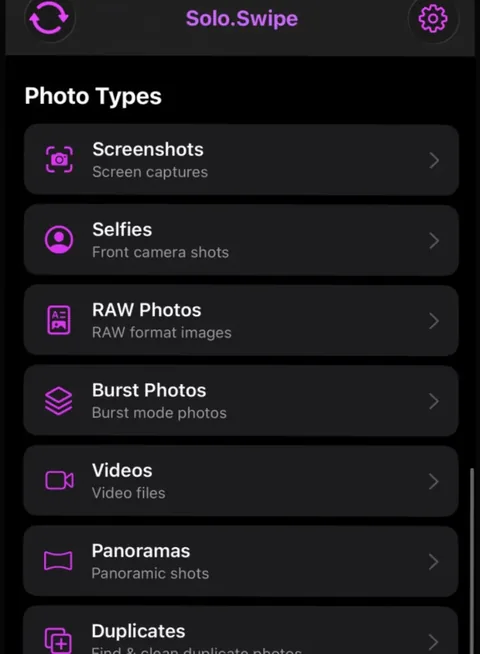
That's the job Solo.Swipe's video tools were built for:
- Large Files › Largest 20 Videos lists your twenty biggest videos first. It's a Pro feature that free users can unlock for the rest of the day by watching one short ad.
- Videos has free filters for 4K Videos (the biggest space eaters), Long Videos (over 5 minutes) and Screen Recordings.
- Each video plays inside the card, so you decide on the clip, not the thumbnail. Swipe left to delete, right to keep, up to file it into an album.
- At the end you see how much space the session freed. Deletions go through iOS, so they land in Recently Deleted: empty it afterwards to reclaim the space.
The free version allows 50 deletions a day (plus 20 for each optional ad). For a storage emergency that's rarely the limit: you need a dozen big videos gone, not a thousand photos.
How do you avoid this before the next update?
Make space a little at a time instead of all at once. A big release is followed by smaller point updates, and each one needs room to install. Five minutes a week keeps you clear.
- Weekly: review the week's videos and screen recordings. They're the fastest-growing part of most libraries.
- Weekly: delete screenshots whose job is done (tickets, codes, directions).
- Monthly: empty Recently Deleted once you're sure.
- Before every major update: check iPhone Storage and back up.
In Solo.Swipe you can set a daily space goal (250 MB to 5 GB) and watch the ring fill as you clean, and a streak (review at least 10 photos a day) can sit on your Lock Screen as a nudge. The Camera Roll Reset is the full 5-minute routine.
Where Solo.Swipe doesn't help
It only works on your photo library. It can't offload apps, clear message attachments, shrink System Data or compress videos. For those, use Settings › General › iPhone Storage.
Questions
How much storage do I need to update to iOS 27?
Apple doesn't publish one figure for every iPhone; the size depends on your model and current version, and Settings › General › Software Update tells you when there isn't enough space. If you want Apple Intelligence, Apple says it needs up to 8 GB on most supported iPhones and up to 14 GB on iPhone 17 Pro, iPhone 17 Pro Max and iPhone Air.
Will updating iOS delete my photos?
No. Apple says your data and settings remain unchanged when you update. Apple still recommends backing up before you update, which is good practice before any big change.
Is it safe to let my iPhone temporarily remove apps for an update?
That's Apple's own mechanism: if the update asks to temporarily remove apps because it needs more space, tap Continue, and the apps are automatically reinstalled after installation is complete. If you'd rather not, tap Cancel and free space manually.
I deleted photos. Why didn't my storage go down?
Deleted photos and videos stay in Recently Deleted for 30 days and still use space. Open Photos, go to Collections, then Utilities, then Recently Deleted, and delete them there. With iCloud Photos and Optimize iPhone Storage on, deleting photos also frees less space on the phone than you might expect.
Do I need to pay for iCloud+ to install an update?
No. Apple says you don't need to purchase more iCloud storage. The update needs free space on the iPhone, which you get by offloading apps and deleting content you don't need.
Related guides
Sources
- Apple Support, If you need more space for an update on your iPhone or iPad (offload vs delete, no need for more iCloud storage, update with a computer, System Data).
- Apple Support, Update your iPhone or iPad (temporarily removing apps; apps reinstalled after installation).
- Apple iPhone User Guide, Update iOS on iPhone (data and settings remain unchanged; back up first; updating with a computer).
- Apple Support, How to get the next generation of Apple Intelligence (up to 8 GB / up to 14 GB of storage).
- Apple iPhone User Guide, Manage storage on iPhone (common storage hogs, offload unused apps).
- Apple iPhone User Guide, Delete or hide photos and videos (Recently Deleted, 30 days, iCloud Photos sync).
- Apple iPhone User Guide, Back up and sync your photos and videos with iCloud (Optimize iPhone Storage is on by default).
Apple pages checked on 15 October 2026. Menu names are from the iOS 27 iPhone User Guide; older versions may label things slightly differently.