“Camera unavailable”
Another app may be using the camera. Close it, or end a FaceTime or video call, then reopen SHOOTS. If it persists, restart the iPhone.

Help
Quick answers first. If something still isn't working, email me and include your iPhone model, iOS version and what happened. I read every message myself.
Prop your iPhone on something stable and frame the spot where you'll stand. In the strip under the viewfinder, choose a Photoshoot start delay (Instant to 60 seconds), a Timer mode interval (0.5 seconds to 1 hour, or a burst with SHOOTS+) and a Photo limit (5, 10 or 25; more with SHOOTS+). Tap the shutter, step into frame and pose. SHOOTS counts down, takes every photo on your interval and tells you when it's a wrap.
A 10 second start, a 3 second interval and 25 photos. That's enough time to walk into place, enough time to change pose between frames, and just over a minute of posing. Use 1 second for movement and 5 to 10 seconds for slow, deliberate poses. More in How to take good photos of yourself alone.
Yes. In Photoshoot start → Hands-free start, turn on Raise your palm and/or Say “Cheese”. Hold an open hand up to the camera until the ring fills, or say “Cheese”. The shoot starts with at least a 3-second countdown so you can lower your hand and pose. You can also say “Start a photoshoot with SHOOTS” to Siri, tap a SHOOTS widget or the Control Center control, press a volume button on the camera screen, or use a remote. All free.
Hold your open palm still, facing the camera, until the ring fills. It works best within a few meters and in good light. “Cheese” is recognized in English, on the device, and needs microphone and speech recognition access (Settings → SHOOTS). If your iPhone can't recognize speech on the device, use the palm instead.
iPhone and iPad with iOS or iPadOS 18.6 or later. The optional Apple Watch app needs watchOS 10.6 or later and works with SHOOTS on iPhone (Apple Watch doesn't pair with iPad). 48MP and ProRAW depend on your iPhone's camera, and modes your device can't do are hidden. There is no Android, Mac or web version.
SHOOTS is available in 11 languages: English, Arabic, German, Spanish, French, Italian, Japanese, Korean, Portuguese (Brazil), Russian and Turkish. It follows your device language, or pick one in Settings → Language. The recorded voice is English; in other languages, iPhone's own voice speaks the lines. This website is also in Turkish and Spanish.
Tap the shutter again to stop. If the shoot pauses (for example the camera was interrupted or the iPhone got too hot), you can resume it from the shutter or from your Apple Watch.
To protect your iPhone. If it gets too hot, SHOOTS pauses and says so, then continues once it has cooled down. It also warns you out loud when battery or storage runs low, and stops if storage is full. For long shoots, plug in, keep the phone out of direct sun and take off a thick case.
Yes. Flip cameras on the iPhone, from the Watch or from a remote. The front camera has a wide 0.8× and a standard 1× framing, and you can turn on Mirror selfies in Settings so photos match the preview. The back camera is sharper, so use it when you can.
In some regions iPhone always plays its own camera click by law. There, that click plays instead of the SHOOTS shutter sound you picked.
Announcements say when a shoot starts and ends and warn about battery, storage or heat. With SHOOTS+, Talk to me adds a photographer's voice: Pose Coach calls your next pose between shots (“Chin down, just a little.”, “Now walk toward me.”), compliments cheer you on, or both. Turn each off and set the voice volume in the Sound sheet or Settings. The recorded voice is English; in other app languages, iPhone's own voice speaks the lines.
Sounds follow the Silent switch: with Silent Mode on, SHOOTS stays quiet and tells you so. Turn Silent Mode off, and check Settings → Feedback for the shutter sound and countdown beeps.
Install SHOOTS on your Apple Watch (Settings → Apple Watch shows whether it's there), keep your iPhone nearby with SHOOTS open, and the Watch shows the shutter. Start, stop and resume, zoom with the Digital Crown, flip cameras, and change mode or flash in Options. The live viewfinder on the Watch is part of SHOOTS+. Apple Watch works with SHOOTS on iPhone only. See the Apple Watch guide.
Bring the iPhone closer, make sure Bluetooth is on, and open SHOOTS on the iPhone. If the iPhone was restarted, unlock it once. If the Watch asks you to update, install the same version of SHOOTS on both.
On the device you're shooting with, open Menu → Remote and turn on “Another iPhone or iPad as remote”. On the other device, open Menu → Remote → “Use this device as a remote” and tap the camera, then tap Allow on the camera once. The remote can start and stop shoots and switch lenses and modes for free; the live picture on the remote is part of SHOOTS+ on the camera device. The two connect directly over Wi-Fi or Bluetooth, with no server.
Both devices must let SHOOTS use the local network. On the device that fails, open Settings → Privacy & Security → Local Network, switch SHOOTS off and on again, and try again. Keep both devices close with Wi-Fi or Bluetooth on. If it still won't connect, restart that device.
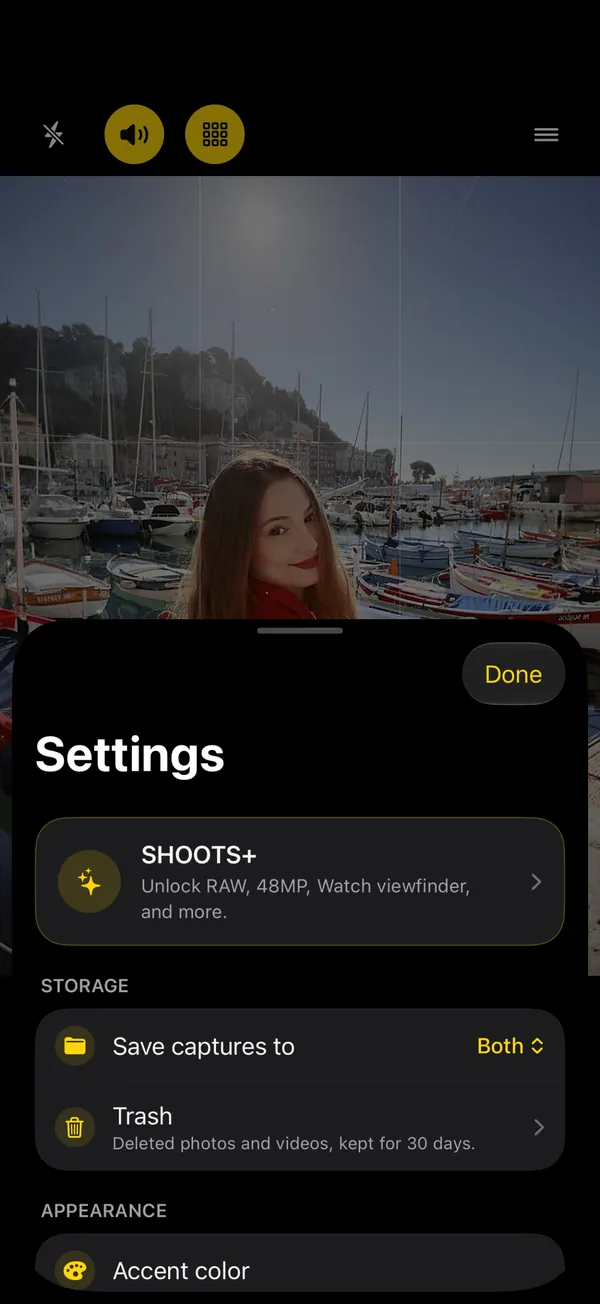
Every shoot appears in the SHOOTS gallery as its own album. In Settings → Save captures to, choose App Only, Camera Roll, or Both. Saved to Photos, each shoot gets its own album named like “SHOOTS - 22/10/26 14:05”.
Photos you save to the Camera Roll are backed up however your Photos library is (for example iCloud Photos). Shots kept App Only stay on the device and are deliberately excluded from iCloud and device backups, so if you delete the app or lose the phone, they're gone. Save your keepers to Photos.
SHOOTS needs Photos access to save there. Open Settings → Privacy & Security → Photos → SHOOTS and allow access. With add-only access shots still land in your library, just not in a per-shoot album. Or switch to App Only and save keepers later from the gallery.
Open Settings → Trash in SHOOTS. Deleted photos and videos wait there for 30 days; select them and tap Restore or Save to Photos.
Open the shoot, heart your favorites, drag across thumbnails to select the rest and delete them. To post the keepers, DUMP builds a carousel or collage in a minute; to clean the rest of your library, Solo.Swipe lets you swipe through it.
A see-through photo laid over the viewfinder, your last shot or one you choose from your library, to match a pose or framing from an earlier shot. Turn it on with the viewfinder button on the camera screen and set its opacity. With SHOOTS+, the Apple Watch and remote viewfinders show it too.
No. There is no account, no ads, no analytics, no tracking and no server. Photos stay on your device unless you share them. Palm detection, Pose Coach's framing check and the “Cheese” voice start all run on the device, and remotes connect directly to the camera. Purchases go through Apple. Details in the privacy policy.
The microphone records sound in Video, the + Video modes, Cinematic and Live, and listens for “Cheese” if you turn on the voice start. Speech recognition is only for “Cheese” and runs on your iPhone. If you only take photos and start with the shutter or your palm, you never need either.
Unlimited photos per shoot and Forever mode, burst intervals, Apple ProRAW and 48MP, Portrait, Live, the + Video modes, Video and Cinematic, the live viewfinder on Apple Watch, iPhone or iPad, and Talk to me (Pose Coach and compliments). The hands-free start, remote controls, ghost overlay and everything else are free. See the full comparison and the App Store for current details.
To restore on a new device, open the SHOOTS+ screen and tap Restore. Subscriptions are managed by Apple: on your iPhone go to Settings → [your name] → Subscriptions, or use “Manage or cancel your subscription” in SHOOTS Settings.
Troubleshooting
Another app may be using the camera. Close it, or end a FaceTime or video call, then reopen SHOOTS. If it persists, restart the iPhone.
Open iOS Settings → Privacy & Security → Camera and turn on SHOOTS.
Check for a heat, battery or storage warning. Free shoots stop at 25 photos; larger shoots and Forever are SHOOTS+.
Allow Local Network for SHOOTS on both devices (Settings → Privacy & Security → Local Network), keep them close, and tap Allow on the camera.
Keep the iPhone close with Bluetooth on and SHOOTS open. Unlock the iPhone once after a restart. Same SHOOTS version on both devices.
Apple ProRAW and 48MP only work on iPhones and lenses that support them. RAW is available in Photo and Photo + Video mode.
Check Settings → Save captures to. With App Only they stay in the SHOOTS gallery. Allow Photos access to save to the library.
Contact
SHOOTS is made by one person, Gül Eda Aydemir. Bug reports, feature ideas and your best SHOOTS photos are all welcome.
Email: solostaseraofficial@gmail.com
Instagram: @solo.stasera