Guide · Remote
How to use an iPad or second iPhone as your iPhone camera remote
Your iPhone is the camera. The iPad on the sofa, or the old iPhone in the drawer, can be the viewfinder and the shutter. Here’s how.
 By Gül Eda Aydemir6 min read
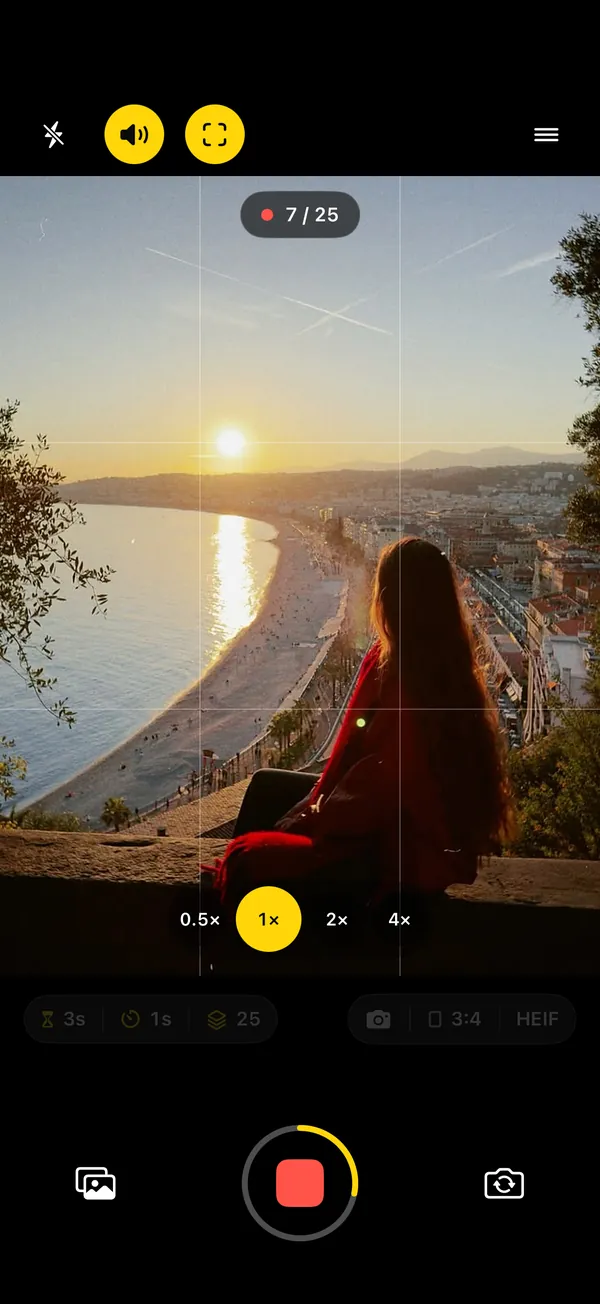
- Apple’s own options: Camera Remote on Apple Watch (iPhone only), and for pro video, Final Cut Camera as a remote angle in a Live Multicam session in Final Cut Pro for iPad. We found no iPad or iPhone remote for the Camera app in Apple’s guides (checked 24 October 2026).
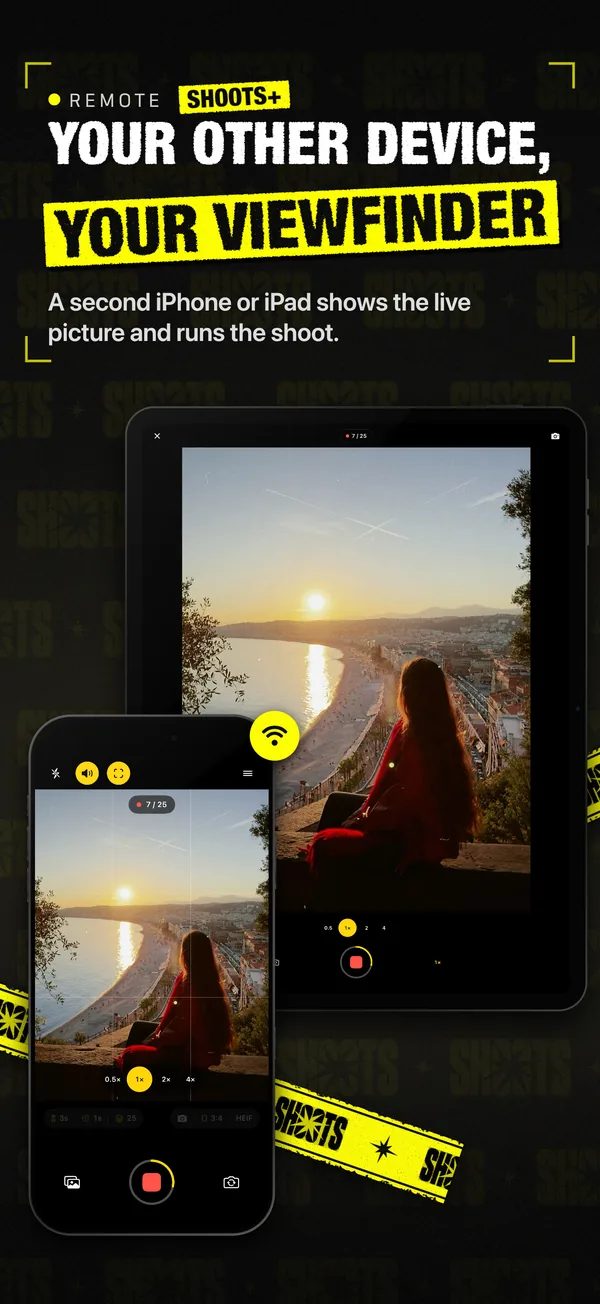
- With SHOOTS on both devices: camera → Menu → Remote → “Another iPhone or iPad as remote”. Remote → Menu → Remote → “Use this device as a remote”, tap the camera, then tap Allow on the camera once.
- Free: start and stop shoots, switch lenses and modes. SHOOTS+: the live picture on the remote.
- Won’t connect? Allow Local Network for SHOOTS on both devices.
A propped iPhone has one problem: the screen faces away from you. An Apple Watch fixes that if you have one, but plenty of people have a better screen lying around: an iPad, a partner’s iPhone, the old phone that became a music player. This guide covers what Apple offers for using one device to control another’s camera, and how to set it up in SHOOTS, the hands-free camera we make.
What Apple offers
We went through Apple’s support guides on 24 October 2026 (iOS 27, watchOS 27). Here’s what exists:
- Apple Watch Camera Remote. A live preview of the iPhone camera on your wrist, a shutter with a 3-second timer, zoom with the Digital Crown, within about 33 feet (10 m) (Apple Watch User Guide). It needs an Apple Watch, and Apple Watch pairs with an iPhone. Our Apple Watch camera remote guide covers it.
- Final Cut Camera with Final Cut Pro for iPad. Apple’s Final Cut Camera app on iPhone or iPad can record on its own or as a remote camera in a Live Multicam session in Final Cut Pro for iPad, with up to four devices to preview, record and sync angles. It’s built for video productions, and Final Cut Pro for iPad is a separate app (see the App Store for its terms).
- Duo Preview on iPhone Duo. iPhone Duo can show the person you’re photographing a mirrored preview on its outer display. Useful, but it’s the same phone, and someone still presses the shutter.
- AirPods. Supported AirPods can take a photo with a stem press on iOS 26 and later. A shutter, not a viewfinder.
What we didn’t find: a way to use an iPad or a second iPhone as the viewfinder and shutter for the iPhone’s Camera app when taking photos. If that changes, tell us via support and we’ll update this page. For now, you need a camera app that has its own remote, on both devices.
How to set it up in SHOOTS
Install SHOOTS on both devices (iPhone or iPad, iOS or iPadOS 18.6 or later). Either one can be the camera; the other becomes the remote. Then:
- On the camera device: open SHOOTS, tap Menu → Remote, and turn on “Another iPhone or iPad as remote”. It now waits for a remote and tells you what to do on the other device.
- On the remote device: open SHOOTS, tap Menu → Remote → “Use this device as a remote”. It looks for cameras nearby; tap yours in the list. (This device’s own camera stays off while it’s a remote.)
- Allow it, once: the camera asks whether to allow the remote to control it. Tap Allow. You won’t be asked again for that device.
- Prop the camera and frame the shot. No tripod? See places to prop your phone.
- Walk to your spot and start the shoot from the remote. The camera runs your plan: Photoshoot start, Timer mode and Photo limit, exactly as if you had tapped its shutter.
The first time, iOS may ask on each device whether SHOOTS can find devices on your local network. Allow it on both; it’s how they find each other. To remove a device you allowed, use Forget allowed devices in the camera’s Settings.
What’s free, what’s SHOOTS+
| On the remote | Free | SHOOTS+ |
|---|---|---|
| Start and stop shoots | ✓ | ✓ |
| Switch lenses and modes | ✓ | ✓ |
| See the camera’s live picture | — | ✓ (SHOOTS+ on the camera device) |
| Ghost overlay on the remote viewfinder | — | ✓ |
Without SHOOTS+ on the camera, the remote still works: it says “The remote works. The live picture needs SHOOTS+ on the camera.” and keeps every control. Photo mode is free; Portrait, Live, Video, Cinematic and the + Video modes are SHOOTS+, wherever you pick them from.
Good ways to use it
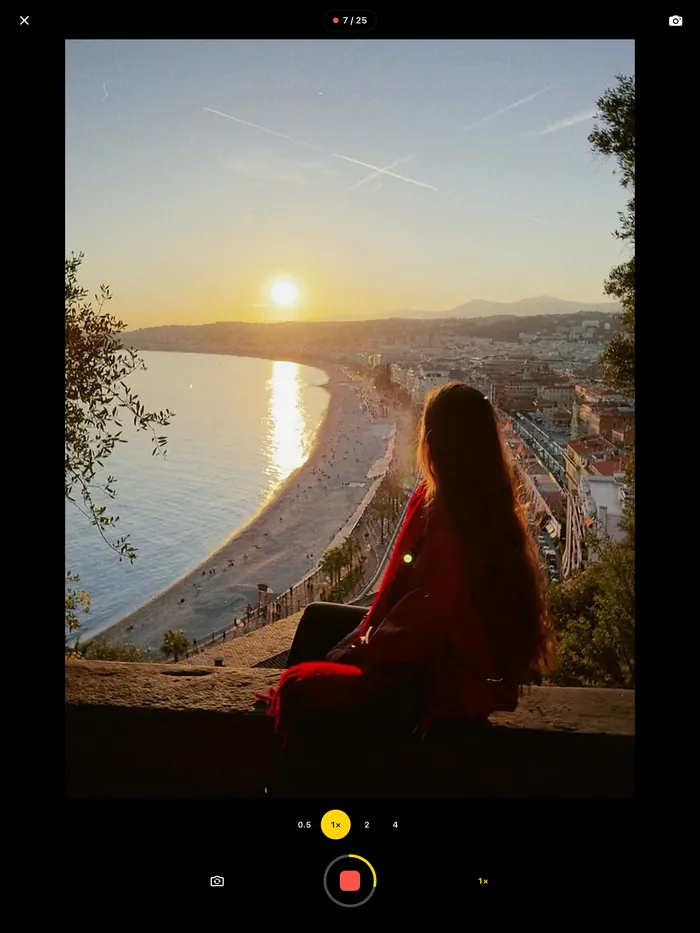
- iPad as a big viewfinder for outfits. Lean the iPad against the wall behind the camera, out of frame, and check every look full size before you start. More in outfit photos at home.
- iPhone as the remote for an iPad camera. Shooting with the iPad on a stand? Keep an iPhone in your hand as the remote. (An Apple Watch can’t do this job: it doesn’t pair with iPad.)
- A friend’s phone. In a group, anyone with SHOOTS can be the remote, so the photographer gets into the picture. See group photos with everyone in it.
- Your old iPhone. As long as it runs iOS 18.6 or later, it makes a good dedicated remote.
- Match a pose. With SHOOTS+, turn on the ghost overlay on the camera (Viewfinder sheet), and the remote viewfinder shows your earlier shot see-through, so you can line up the same pose from your spot.
Troubleshooting: Local Network and friends
Almost every connection problem comes down to one setting. Here’s what you might see, and what to do:
| You see | Do this |
|---|---|
| “Looking for a camera…” and nothing appears | On the camera, check that “Another iPhone or iPad as remote” is on and the camera is open. Keep both devices close with Wi-Fi or Bluetooth on. |
| The camera appears but won’t connect | Local Network is off for SHOOTS on one device. Open Settings → Privacy & Security → Local Network, and turn SHOOTS on, on both devices. If it’s already on, switch it off and on again. |
| “Needs update” | Update SHOOTS on both devices so they run the same version. |
| “Not allowed” | The camera didn’t allow this device. Tap Try Again on the remote, then Allow on the camera. |
| “Camera not open” | Open the camera in SHOOTS on the camera device. |
| “Connection lost” | Bring the devices closer; it reconnects on its own. |
| “The camera is in use by a call or another app” | Finish the call or close the other camera app on the camera device. |
| Still stuck | Restart the device that won’t connect, then try again. |
Apple Watch or iPad?
| Apple Watch | Second iPhone or iPad | |
|---|---|---|
| Camera it controls | iPhone only | iPhone or iPad |
| Free controls | Start, stop, resume, Digital Crown zoom, flip, mode, flash | Start, stop, lenses, modes |
| Live picture (SHOOTS+) | Tiny, on your wrist | Big, easy to judge a whole outfit |
| In the photo | Easy to hide | Hard to hide; keep it out of frame or behind the camera |
| Best for | Solo shoots, travel, posing while you control | Outfits, groups, a second person directing, iPad cameras |
No remote at all? You can still start from your spot: raise your palm to the camera or say “Cheese” (free). See How to start a photoshoot hands-free.
The best viewfinder is the one you’re already holding.
When the shoot is over, review it on the camera device: every session is its own album in the SHOOTS gallery. Turn the keepers into a carousel with DUMP and sweep the rest of your camera roll with Solo.Swipe.
Questions people ask
Can I use my iPad as a remote for my iPhone camera?
How do I connect a second iPhone as a camera remote in SHOOTS?
Is the remote free?
Why won’t my iPad connect to the iPhone camera?
Can I use my Apple Watch with SHOOTS on iPad?
Gül Eda Aydemir is the independent iOS developer behind SHOOTS, DUMP and Solo.Swipe. She designs, builds and answers support for every app herself. Say hi at solostaseraofficial@gmail.com.
Prop up your iPhone, step into frame and let SHOOTS run the whole photoshoot.
Download on theApp Store
On a computer?Scan with your iPhone camera
Keep reading
How to take good photos of yourself when no one's around
No tripod, no friend, no stranger you have to trust with your phone. Just a ledge, a timer and a plan.
Gül Eda Aydemir · 6 min read
How to take more than one photo on an iPhone timer (and space them out)
Apple’s timer counts down and shoots one moment. Here’s how to squeeze more out of it, and when to switch to an interval camera.
Gül Eda Aydemir · 7 min read
How to start a photoshoot without touching your phone
The worst part of a timer shot is the sprint from the phone to your spot. Here are all the ways to skip it, with Apple’s Camera and with SHOOTS.
Gül Eda Aydemir · 7 min read